Infor ION Service
The Infor ION Service establishes an authenticated connection between B2Win Suite and your Infor CloudSuite environment.
Setup Steps
1. Log in to Infor OS Portal
Go to Infor OS Portal.
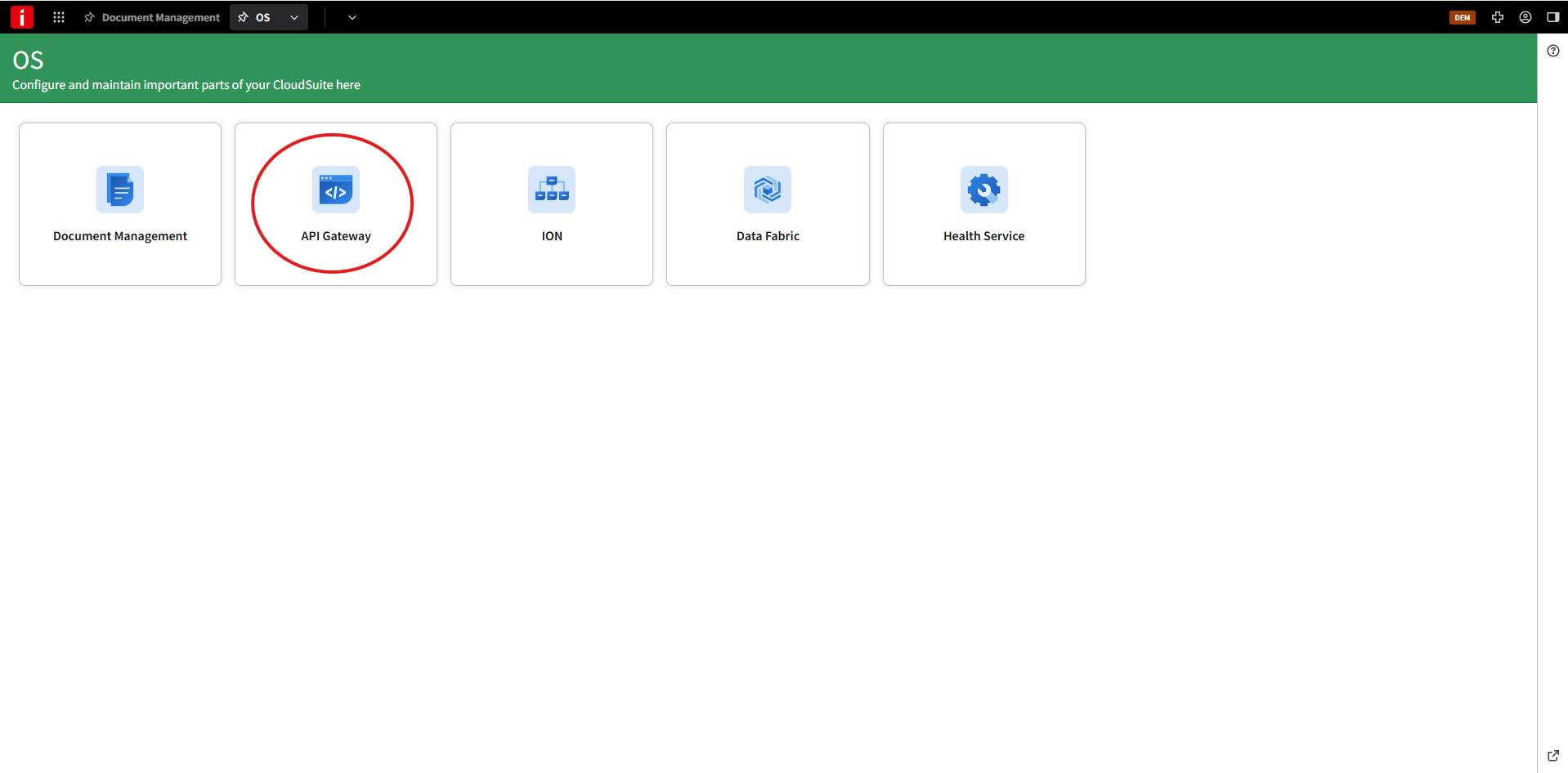
2. Open API Gateway
Open OS > API Gateway.
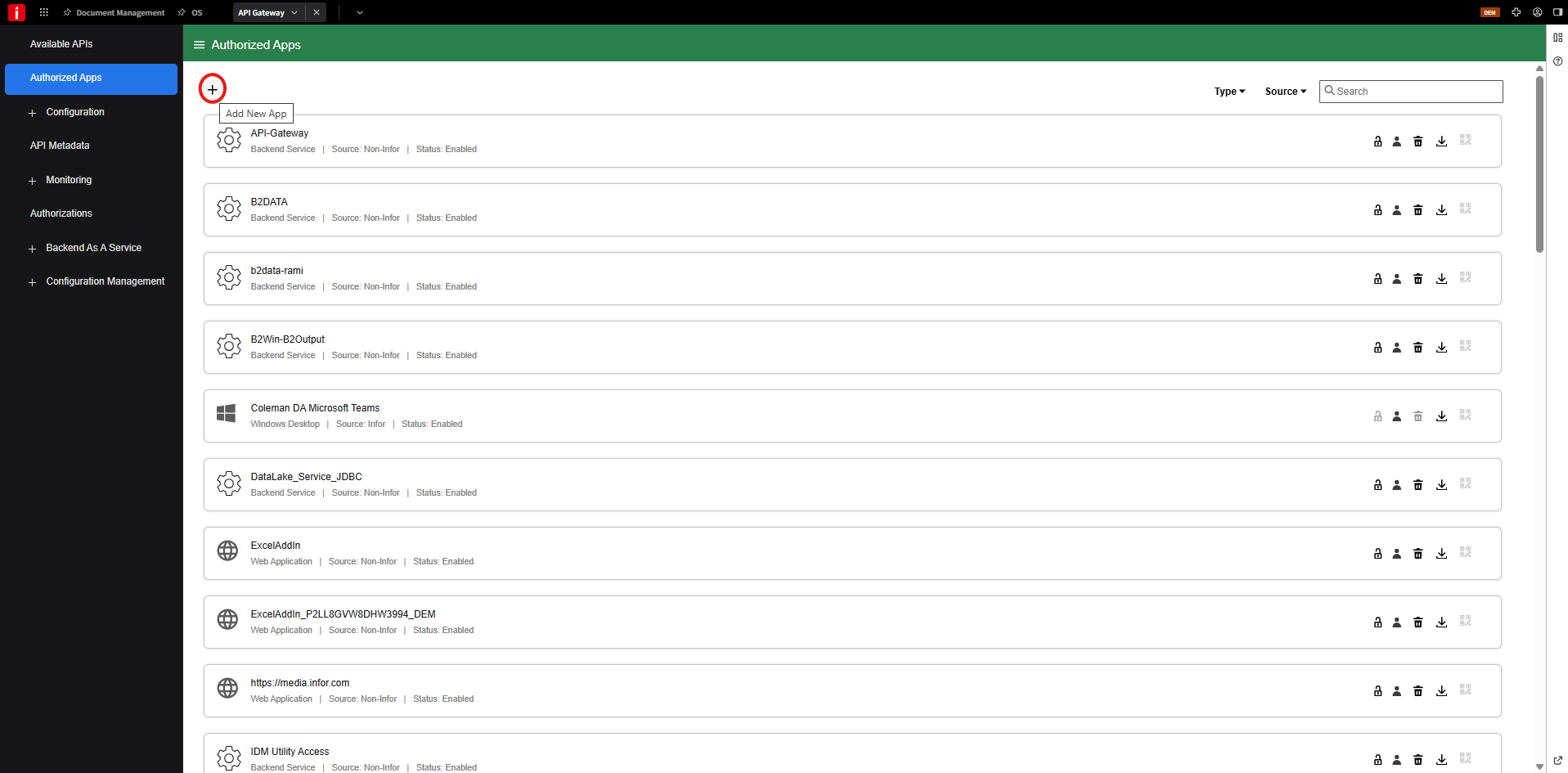
3. Create an authorized app
Open Authorized Apps and click Add New App.
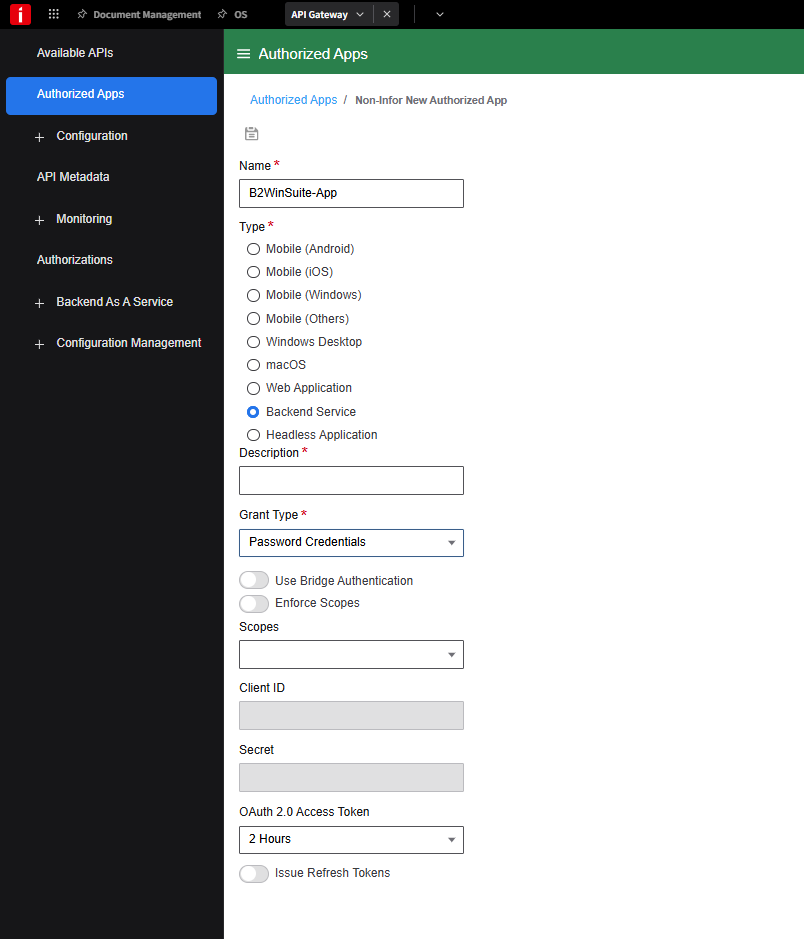
4. Enter the app details
Use the following values:
- Name —
B2WinSuite-App(or any unique name to identify this service configuration) - Type — Backend service
- Description — optional description
- Grant Type — Password Credentials
- Scopes — select Infor-DataFabric and Infor-ION

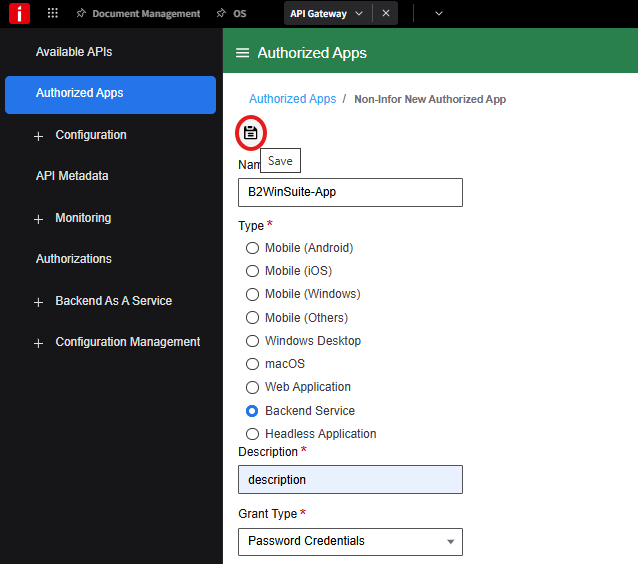
5. Save the app
Click Save.
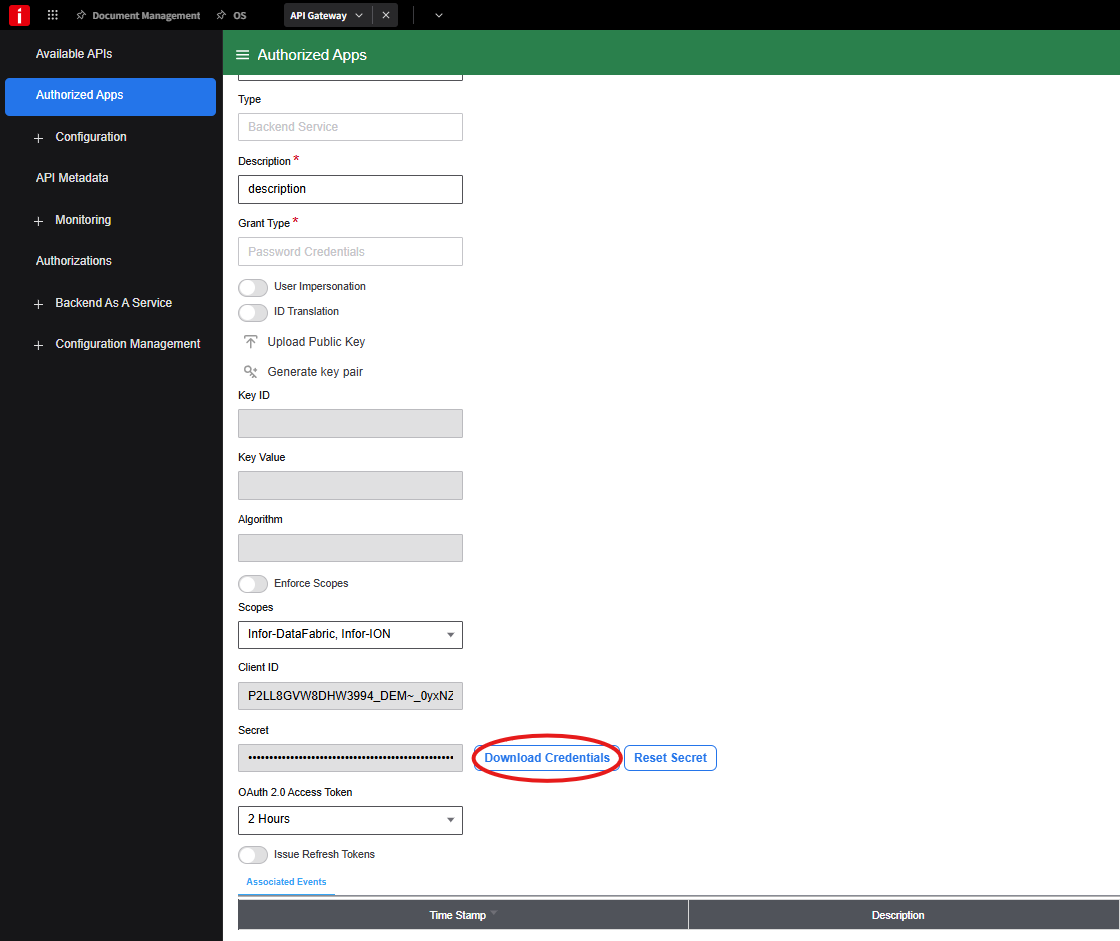
6. Download credentials
Open the app and click Download Credentials.
7. Create the service account and download the file
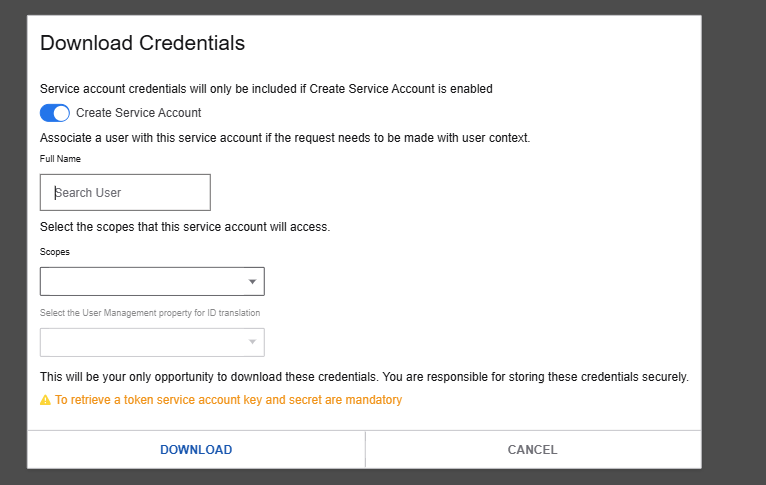
Enable Create Service Account, enter the username, then click Download to save the .ionapi file.
Configure in B2Win Suite
Go to Configurations > Services and open the Infor ION service. On the Details tab, fill in the following:
- Name — A unique name to identify this service configuration.
- ION API File — Upload the
.ionapifile from step 7. This file contains all the connection details needed for the IDM service.
Click Save when done.
Infor DataFabric DB Connection
The same .ionapi file can also be used when creating a DB Connection that connects to Infor DataFabric. When adding a new DB Connection in Configurations > DB Connections, select the Infor Compass JDBC driver and upload the .ionapi file from step 7. This gives B2Win Suite direct SQL-like query access to DataFabric data, which can then be used in Visual Query, Query Trigger, and other database-driven nodes.
Troubleshooting
- Verify the
.ionapifile has not expired or been revoked in the Infor OS Portal. - Confirm the authorized app in ION API has the required permissions for IDM operations.
- Check that the B2Win Suite server can reach the Infor ION API gateway URL.
- If document uploads fail, verify the Document Type specified in the node is valid in your IDM environment.