Activating B2Win Suite
This section covers activating B2Win Suite and logging in. This step is typically performed during initial installation.
Run report to B2Win device
B2Win Suite is installed as a device inside the BAAN system and can be used whenever you print a report from BAAN/ERP LN.
Print the report to the B2Win Suite device:
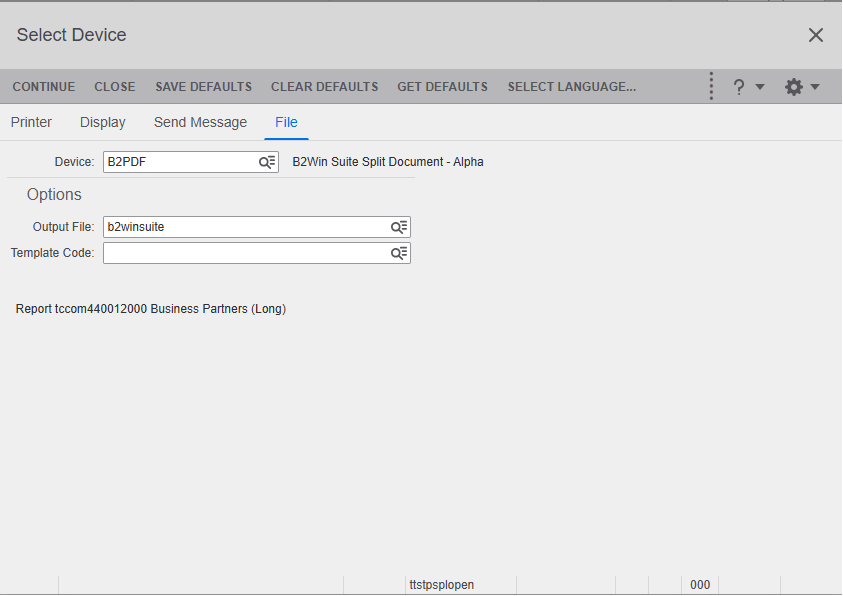
Figure 1 - Choosing the B2Win Suite Device
Login & Sign-up
If this is the first time you open the B2Win Suite device, your browser displays a form where you can enter your details.
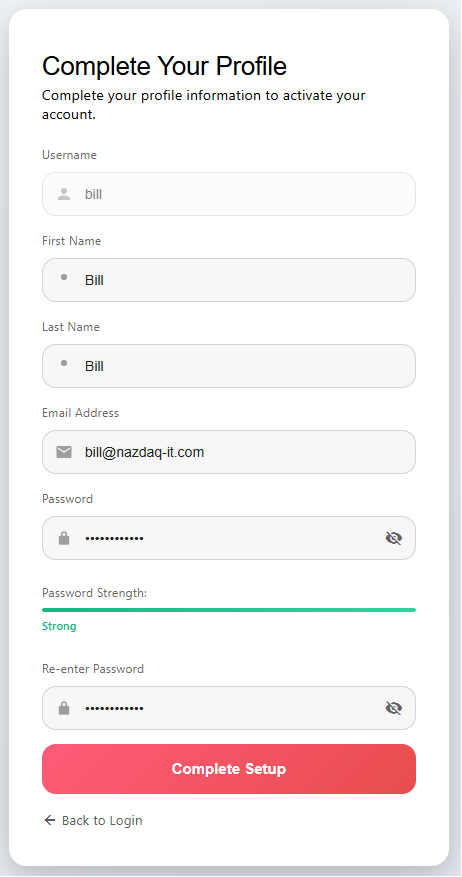
If you want to log in with a different username and password, click Back to Login at the bottom of the form. After that, your credentials are saved and you do not need to log in each time you use B2Win Suite.
Direct Login to B2Win Suite
To log in directly to the B2Win Suite system, instead of launching it from an ERP report, use a link such as https://192.168.1.212:5700 together with a valid username and password. To access all features, sign in with an administrator account or ask your administrator to create a new user with the Admin role.
The first screen should be:
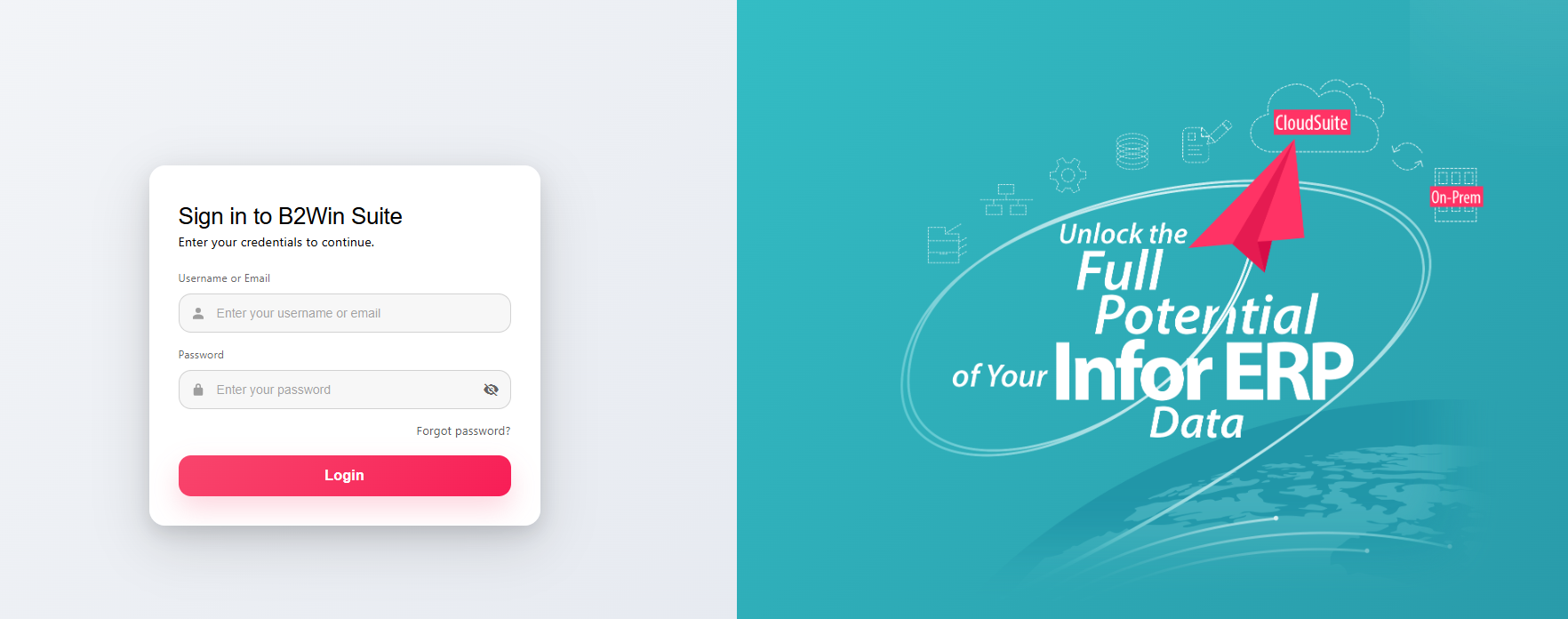
Enter your administrator username and password to log in to the system.
Reset User Password
To reset your password, go to https://SERVERIP:PORT/user/resetpass.
(Example: https://192.168.1.212:5700/user/resetpass)
You will have a screen like this:
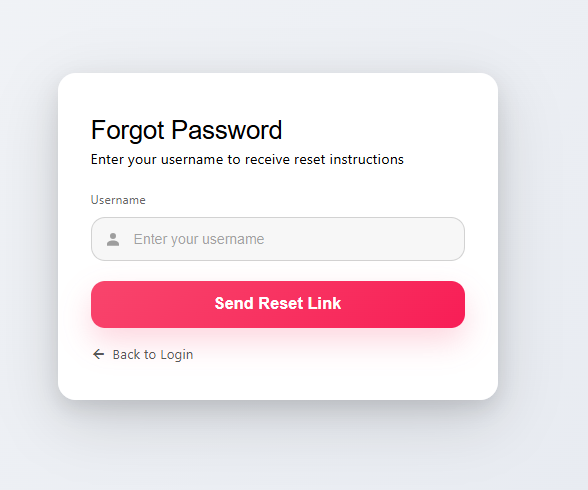
Enter your username and click Send Reset Link. You will receive instructions to reset your password.
Note: If no email was sent, the SMTP server may not yet be configured in application.conf. See application.conf.
Administrators can manage all users in the system, including users that were created automatically.
Some features require additional settings. Go to System Settings -> Settings -> General Settings.