Send Email (Gmail)
The Send Email (Gmail) node allows you to send emails using the Gmail API via a Google Service Account. This method provides a secure, server-to-server integration without needing to store user passwords. The node accepts any input type; when the input is a file it is automatically attached to the outgoing email.
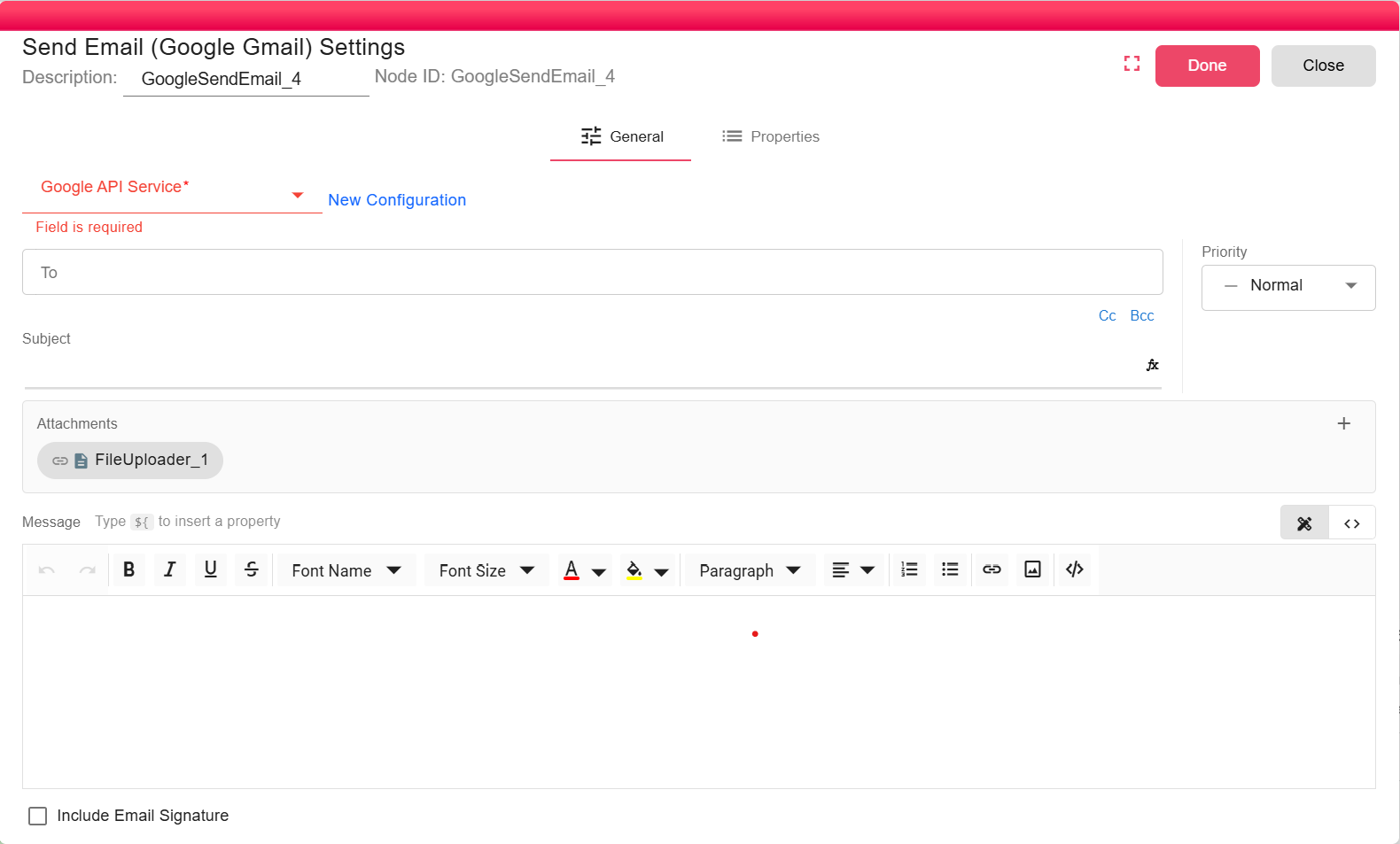
Configuration
Select an existing Google API Service configuration or click Add to create one. See Google API Service for setup instructions.
<img src={require('./01-send-email/img/image7.png').default} style={{maxWidth: '500px', display: 'block'}} />
To
Specify the recipient's email address. You can use properties to get dynamic results. You can also use pre-defined shortcuts and properties like "Executed By" — email of the current executing user, or "Supervisor" — email of the supervisor of the current executing user.
<img src={require('./01-send-email/img/image15.png').default} width="200" />
Subject
The subject line of the email. You can use properties here to get dynamic results as well.
Message
The body text is available as a text editor or a code editor (HTML). To switch to the HTML code editor, click Code Editor on the right:
<img src={require('./01-send-email/img/image19.png').default} width="100" />
Message also supports properties: type ${ to insert a property.
Detach
Check the Detach option if you want to send the notification without attaching the incoming file.
<img src={require('./01-send-email/img/image5.png').default} width="200" />
Priority
You can specify the priority of the email: Low, Medium, or High.
Request Receipt
You can request a delivery/read receipt from the recipient.
Include Email Signature
Specify whether you wish to include or exclude your pre-defined Gmail email signature.