Backgrounds
Backgrounds define the artwork applied behind the pages of generated documents. They are used for stationery, pre-printed letterheads, or decorative elements that appear on the first page, middle pages, and last page of a document — allowing different visual treatment for each section.
List Backgrounds
Open Configuration → Backgrounds to view all configured background entries.

The list displays a preview for each entry's first, middle, and last page backgrounds so you can verify the correct layout before using it in templates and workflows.
Create or Edit a Background
Click + Background to create a new entry, or Edit on an existing row.
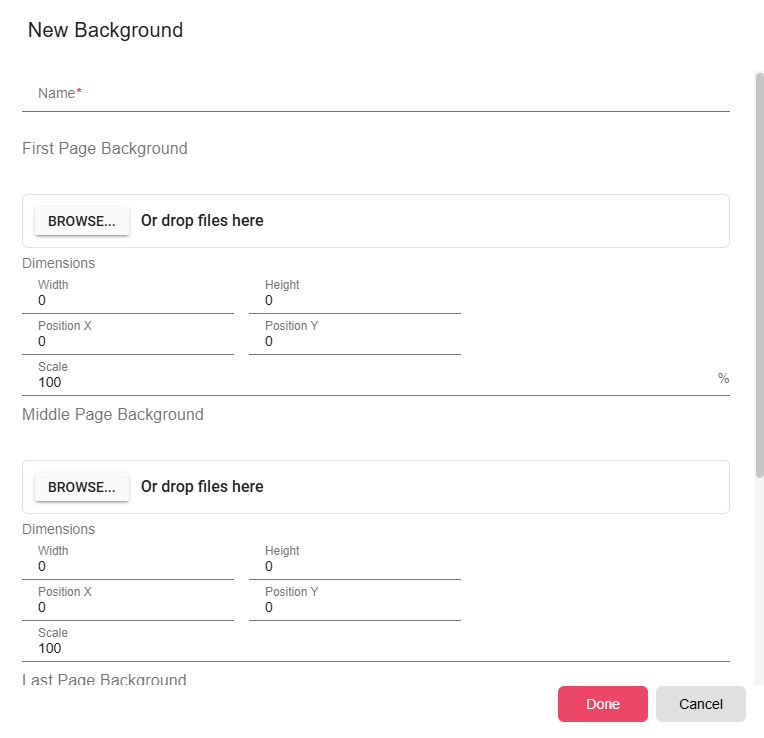
| Section | Description |
|---|---|
| First Page | The background image or PDF used on the first page of the document (for example, a letterhead with company address). |
| Middle Pages | The background applied to all pages between the first and last. Typically simpler than the first page — often just a logo or watermark. |
| Last Page | The background for the final page. Some organizations use a different layout for the last page (for example, terms and conditions). |
For each section, you can:
- Upload a background file — PDF or image (PNG/JPG) formats are supported
- Set dimensions — Explicit width and height for the background layer
- Set position — X/Y offset from the page corner
- Set scale — Scale percentage for the background image
Sections not needed can be left empty, in which case a blank background is used for those pages.
Usage
Backgrounds are selected inside report templates and workflows and applied to the generated document at rendering time. Updating a background entry immediately affects all templates and workflows that reference it.
Notes
- For page-sized backgrounds, ensure the background file dimensions exactly match the document page size (for example, A4 or Letter) to avoid scaling artifacts.