DB Connections
DB Connections store the credentials and configuration needed for B2Win Suite to connect to external databases. Once a connection is configured and its schemas are synchronized, it becomes available for use in:
- Workflow Builder nodes — Query, DB Table Push, DB Push, Query Trigger...
- B2Output database variables
List Connections
Open Configuration → DB Connections to view all connections in the current workspace.
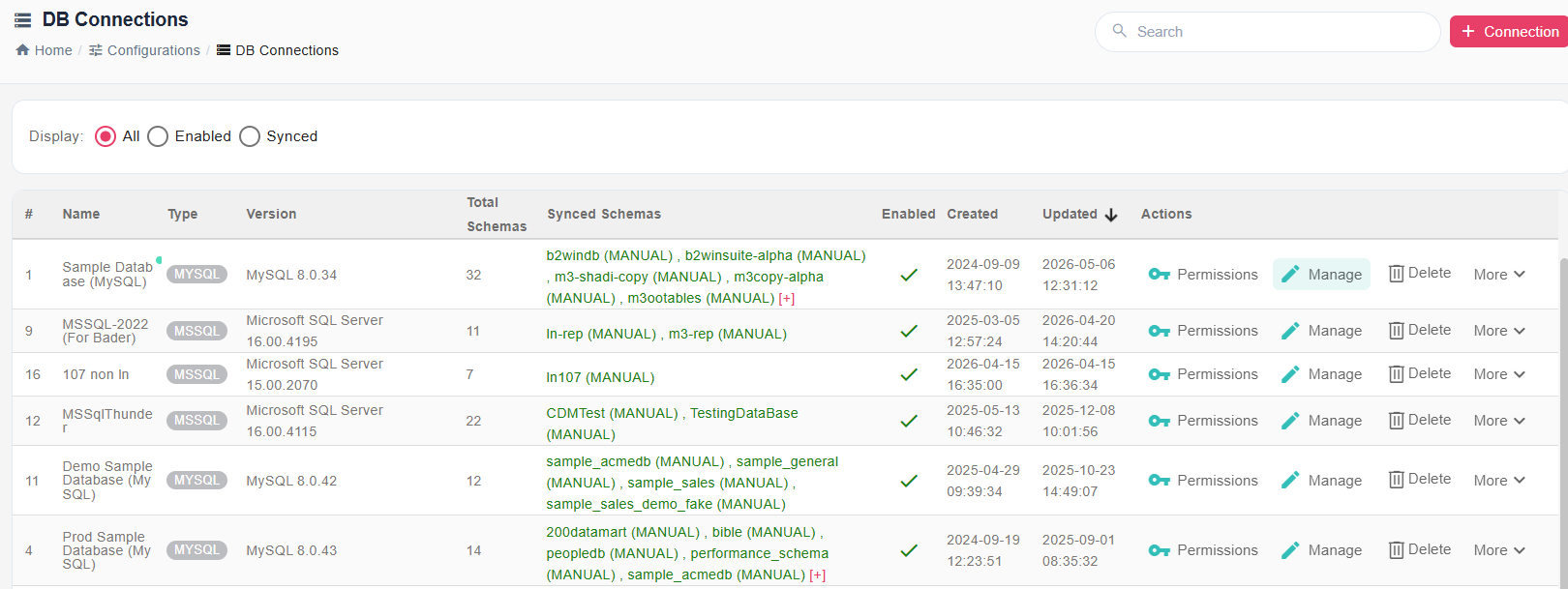
The list shows for each connection:
- Database type and driver version
- Number of schemas found — Total schemas available on the connected database
- Schemas synchronized — Schemas that have been synced and are available in the Workflow Builder
- Status — Active (connected) or error state
Create a New Connection
Click + Connection to open the connection wizard.
Step 1: Connection Details
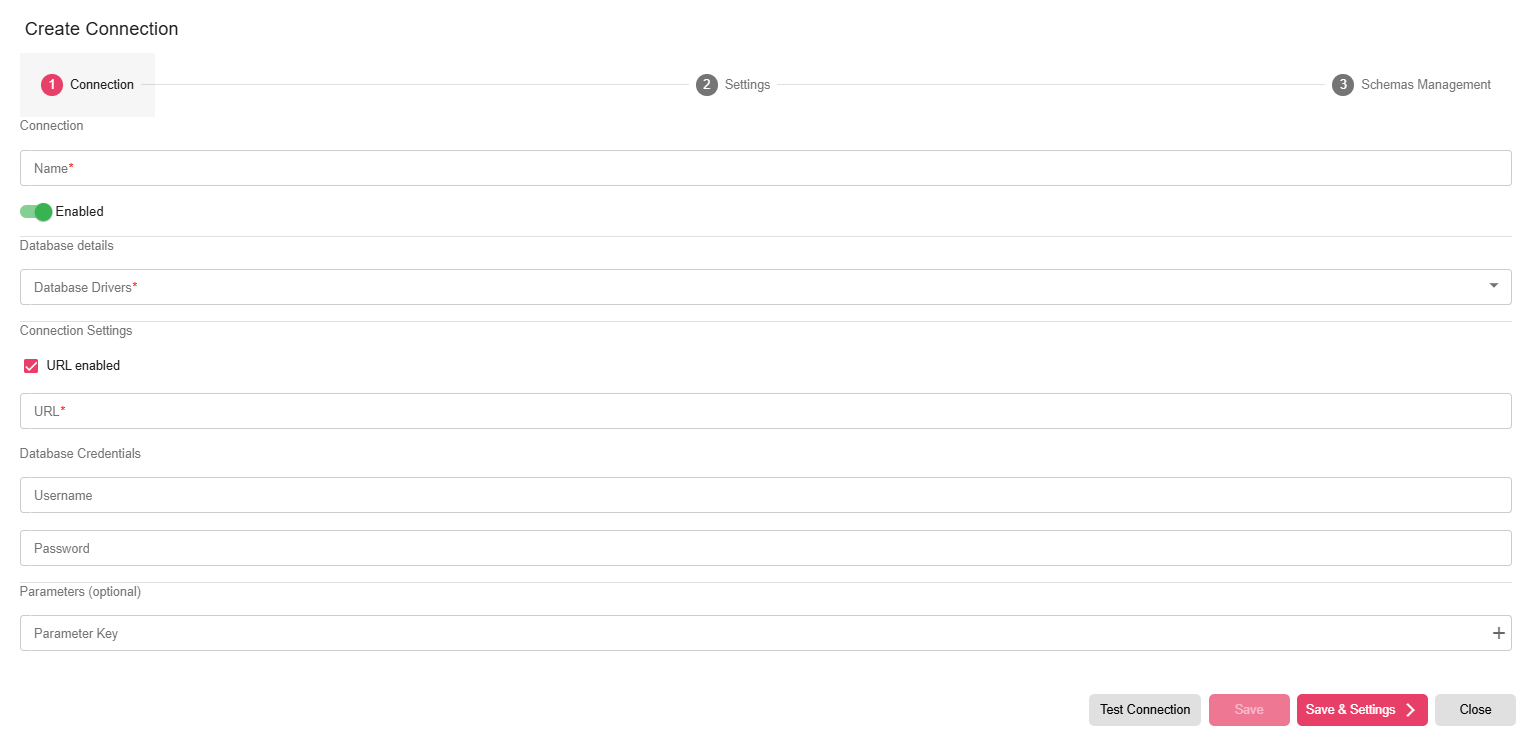
| Field | Description |
|---|---|
| Connection Name | A descriptive name (for example, "ERP Production – Oracle"). This name appears in node configuration dropdowns. |
| Database Driver | The type of database to connect to. Supported drivers include MySQL, Oracle, Microsoft SQL Server, PostgreSQL, and others. |
| Connection URL / Server Details | The JDBC URL or host/port/database details for your database server. |
| Username / Password | Credentials used to authenticate with the database. |
Click Test Connection to verify the settings before saving. A successful test confirms that B2Win Suite can reach the database.
Click Save & Settings to proceed to the schema configuration.
Step 2: Schema Management
After saving the connection, open the Schemas Management section.
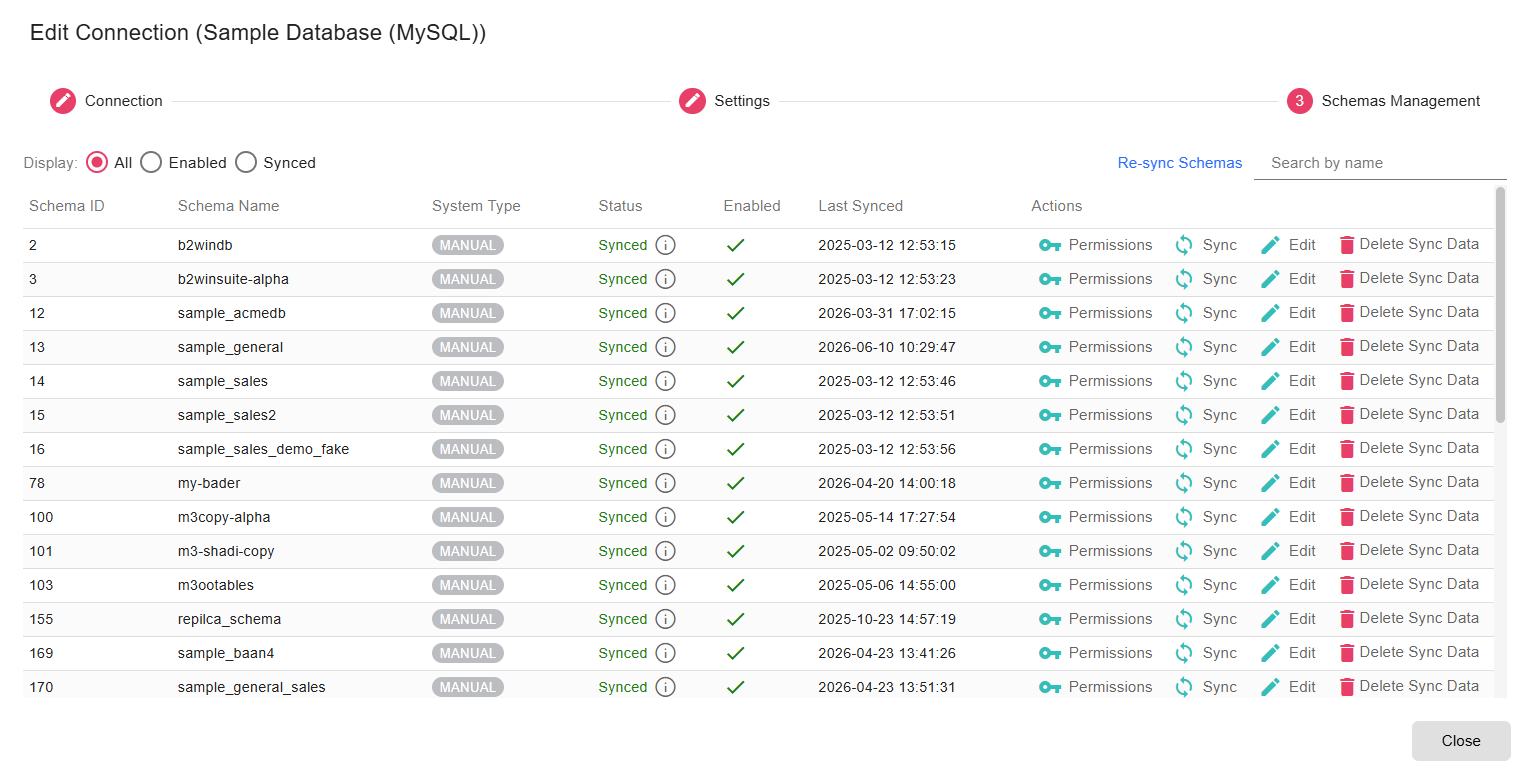
The list shows all schemas available on the connected database. For each schema you want to use in B2Win Suite:
- Click Sync on the schema row.
- Wait for the status to change to Synced.
Only synchronized schemas are available in the Workflow Builder's database connection dropdowns and visual query tools. Re-sync a schema after database changes (new tables, modified columns) to keep B2Win Suite's metadata up to date.
Edit or Delete a Connection
Click Edit on a connection row to update its settings. Click Delete to permanently remove the connection. Deleting a connection that is used by active workflows will cause those nodes to fail.
Connection Security
- Passwords are stored encrypted in the B2Win Suite database.
- Test connections only from the B2Win Suite server — network firewall rules must allow the server to reach the database host on the appropriate port.
Troubleshooting
| Problem | What to try |
|---|---|
| "Test Connection" fails | Verify the host, port, and database name. Ensure the database port is open on any firewall between the B2Win Suite server and the database host. |
| Schema shows as "Not synced" | Click Sync. If sync fails, check that the user has SELECT permission on the schema's metadata tables. |