Workspaces
A workspace is an isolated environment in B2Win Suite for organizing workflows, permissions, and related configuration. Workspaces let you cleanly separate processes by company, ERP environment, department, or business scenario — without different teams interfering with each other.
Each user only sees the workspaces they have been granted access to. B2Win Suite always provides a default workspace, and additional workspaces can be created by administrators.
List and Manage Workspaces
Open Configuration → Workspaces to view all defined workspaces.
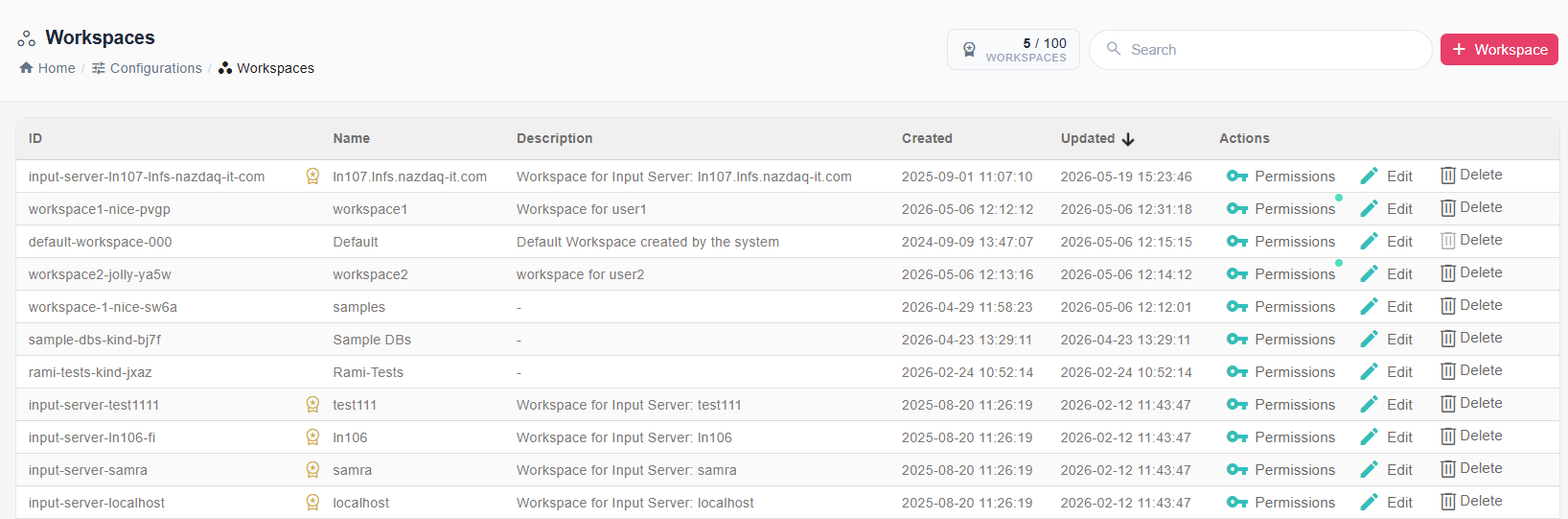
The list shows each workspace with its ID, name, input server, description, creation date, and last update date.
Available actions per workspace:
- Edit — Modify the workspace name, description, aliases, and ERP connection settings.
- Permissions — Control which users or groups can access the workspace.
- Delete — Permanently remove the workspace and all its associated data.
Create or Edit a Workspace
Click + Workspace or Edit to open the workspace form.
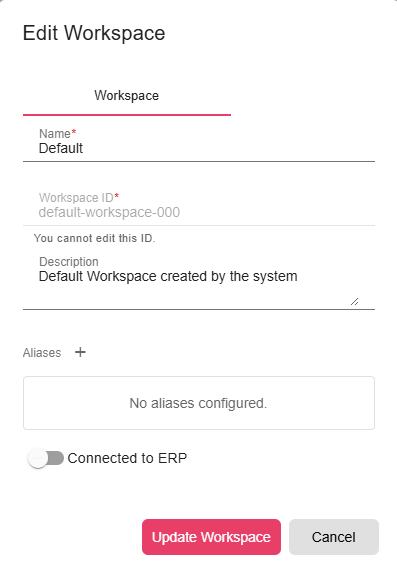
Workspace Tab
| Field | Description |
|---|---|
| Name | The display name for the workspace. Visible in the header selector and in the Manager. |
| Description | An optional description to explain the workspace's purpose. |
| Aliases | Alternative names for the workspace. Used when ERP systems send print jobs or triggers that reference the workspace by a different name. |
| Connected to ERP | Enable this when the workspace receives documents or data from an ERP system. |
Workspace Permissions
To control who can access a workspace, click Permissions on the workspace row. This opens the permission configuration where you can grant or restrict access for specific users or user groups. Users without access permission cannot see or interact with the workspace at all.
Selecting and Switching Workspaces
The current workspace is displayed in the top header bar.
Click the workspace name in the header to:
- Switch to a different workspace
- Open the full workspace list
- Create a new workspace
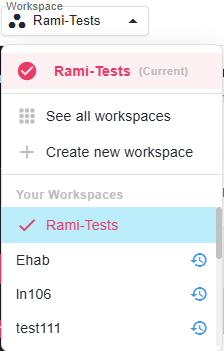
Recently used workspaces are listed first in the dropdown for quick access. When you switch workspaces, the Workflow Manager and all other sections show only the content of the selected workspace.
Best Practices
- Use descriptive workspace names (for example, "Finance – Production" or "ACME Corp – QA") so users can identify them at a glance.