Companies
Each workspace in B2Win Suite maintains its own list of companies. A company represents a legal entity or organizational unit whose documents are processed by B2Win Suite. Business partners, contacts, and address books are all scoped to a specific company.
Companies can be created manually or are created automatically the first time B2Win Suite receives a print job from an ERP device for a new company code.
List Companies
Go to Contact Management → Companies in the navigation panel.

The list shows all companies in the current workspace with #, Name, Code, and Updated columns.
Create a Company Manually
Click + Company to open the New Company dialog, then click Done to save.
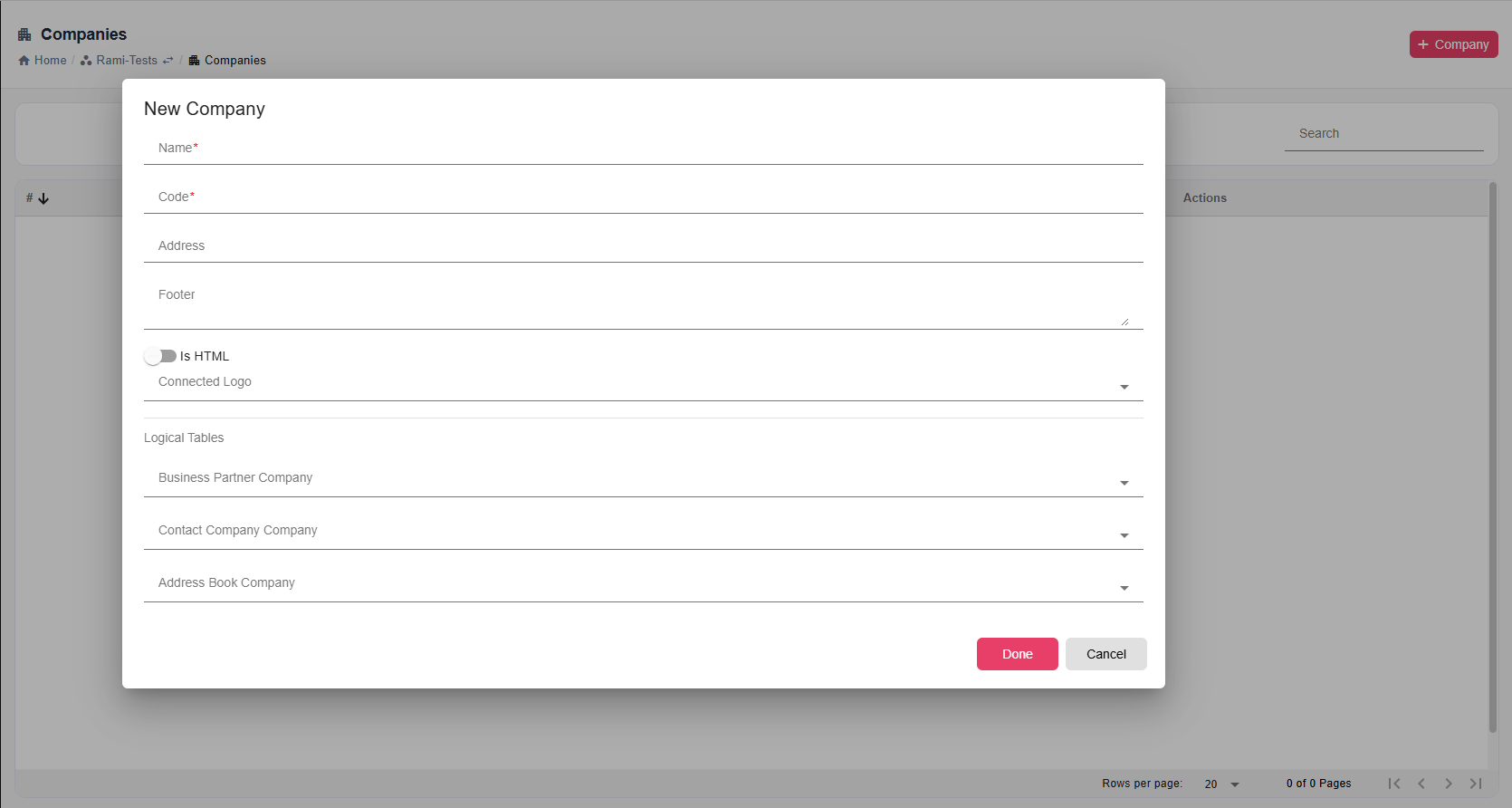
Fields appear in this order in the dialog:
| Field | Description |
|---|---|
| Name | Full display name of the company (required). |
| Code | Short identifier for the company (required). Typically the same code used in your ERP system. Used to match incoming ERP documents to the correct company. |
| Address | Company mailing address |
| Footer | Text footer that could be included to emails signature. |
| Is HTML | Slide toggle. When enabled, the footer is rendered as HTML. When disabled, it is treated as plain text. |
| Connected Logo | Searchable dropdown of Logo & Footer entries. Select the branding to use for this company's documents. Each option shows the logo name and thumbnail when available. |
Logical Tables
The Logical Tables section lets this company reuse business partner, contact, or address book data from another company in the same workspace. Each mapping is optional.
| Field | Description |
|---|---|
| Business Partner Company | Use business partners from the selected company instead of maintaining a separate list for this company. |
| Contact Company Company | Use contacts from the selected company. |
| Address Book Company | Use address books from the selected company. |
When editing a company, the logical-table dropdowns list other companies in the workspace (the current company is excluded). See Import from ERP for how logical tables are used with ERP data.
Company Permissions
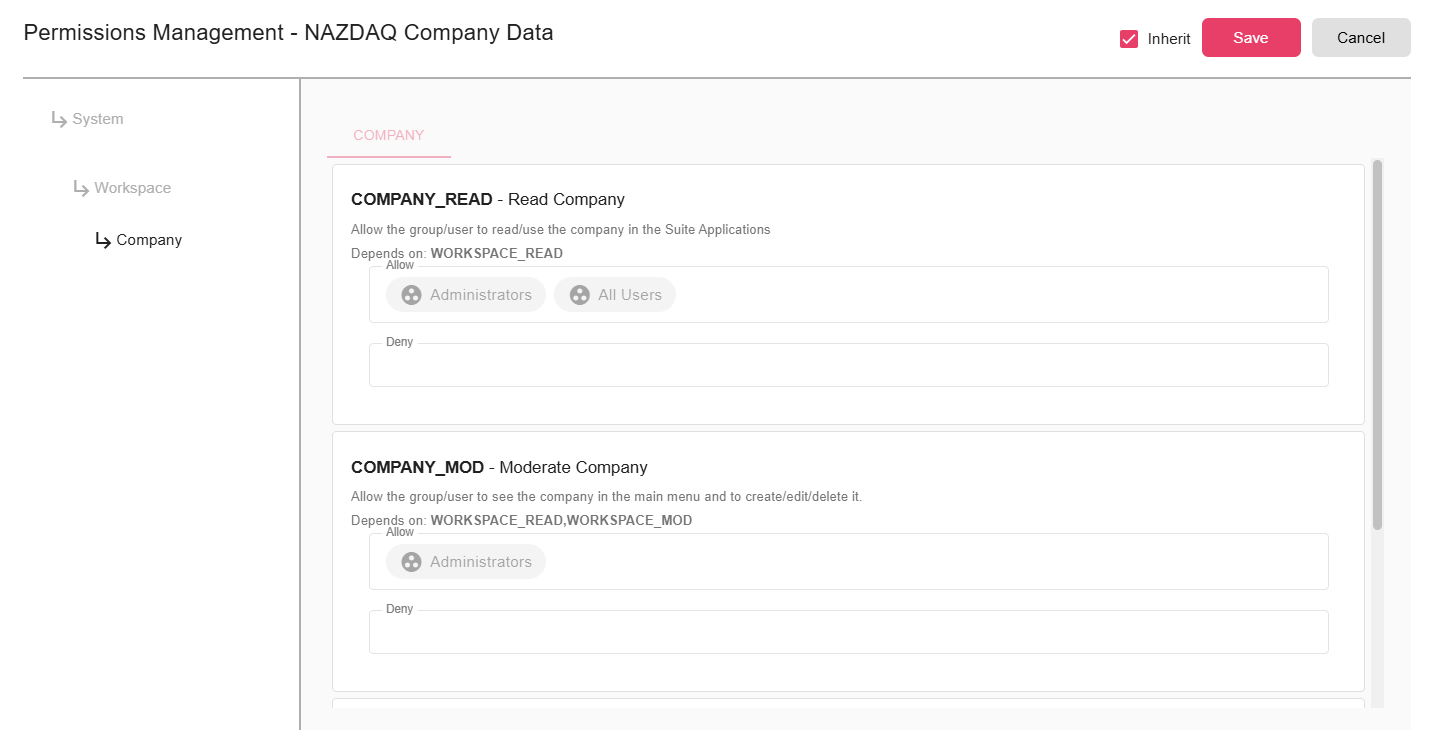
When a company is created, it inherits permissions from the parent workspace. To set company-specific access control:
- Find the company in the list and click Permissions.
- Uncheck the Inherit option to enable custom permissions.
- Configure which users or groups can access this company's data.
Notes
- A company's Code must exactly match the company code sent by the ERP system. Mismatches cause documents to be assigned to the wrong company.
- Companies are scoped to a workspace. Each workspace maintains its own independent list of companies.