Contacts
Contacts are individual recipients used for document distribution. Each contact belongs to a company and has its own communication details and channel preferences. Business partners are linked to contacts separately — via Links on a business partner or through Address Books. When the B2Win Suite distributes a document, it can look up the linked contact in the specified address book and use in distribution.
View Contacts
Go to Contact Management → Contacts and select a company to see its contacts.

The list shows all contacts for the selected company, including code, name, type, email, and distribution channel flags.
Add a Contact
Click + Contact (or the add button at the top right) to open the contact form.

Fill in the required fields and click Done to create the contact.
The form shows the selected Company at the top (read-only). Choose the company from the toolbar before opening the form.
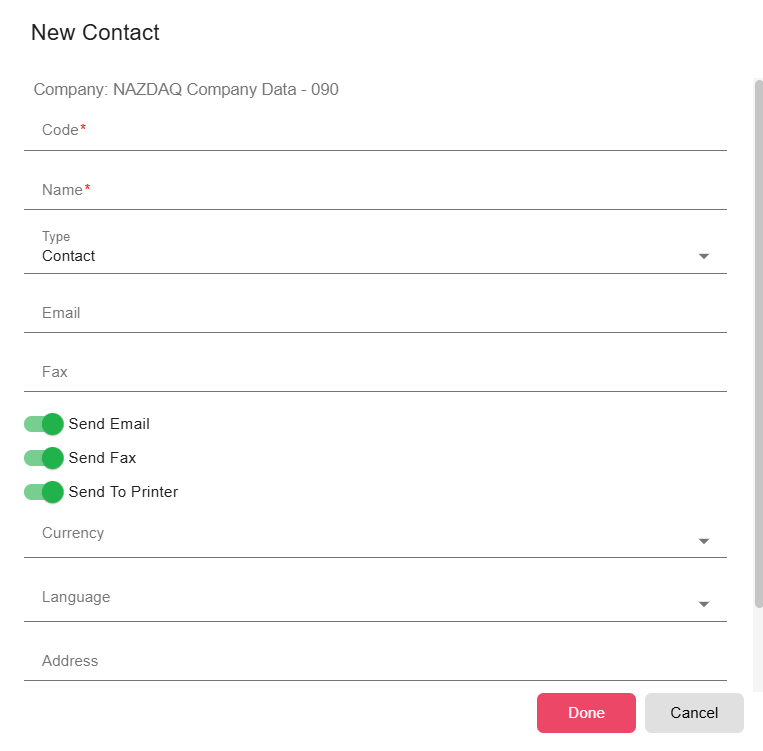
| Field | Description |
|---|---|
| Code | Unique identifier for this contact within the company and type (required). Automatically converted to uppercase. Must be unique per company and type. |
| Name | Display name of the contact (required). |
| Type | Contact or Address. Determines how the contact is used in address book and distribution logic. |
| Email address for document distribution. | |
| Fax | Fax number for document distribution. |
| Send Email | When enabled, the Smart Engine sends documents to this contact's email address. |
| Send Fax | When enabled, the Smart Engine faxes documents to this contact's fax number. |
| Send To Printer | When enabled, the Smart Engine prints documents for this contact. |
| Currency | Default currency for this contact. Options come from Common Data → Currencies. |
| Language | Default language for documents sent to this contact. |
| Address | Address for this contact. |
| Country | Country associated with this contact. |
Linking Contacts to Business Partners
The contact form does not include a business partner field. To associate a contact with a business partner:
- Use Links on a business partner row in Business Partners, or
- Add a BP-to-contact mapping in an Address Book.
When the One Business Partner per Contact Smart Engine setting is enabled, each contact can be linked to only one business partner.
Edit a Contact
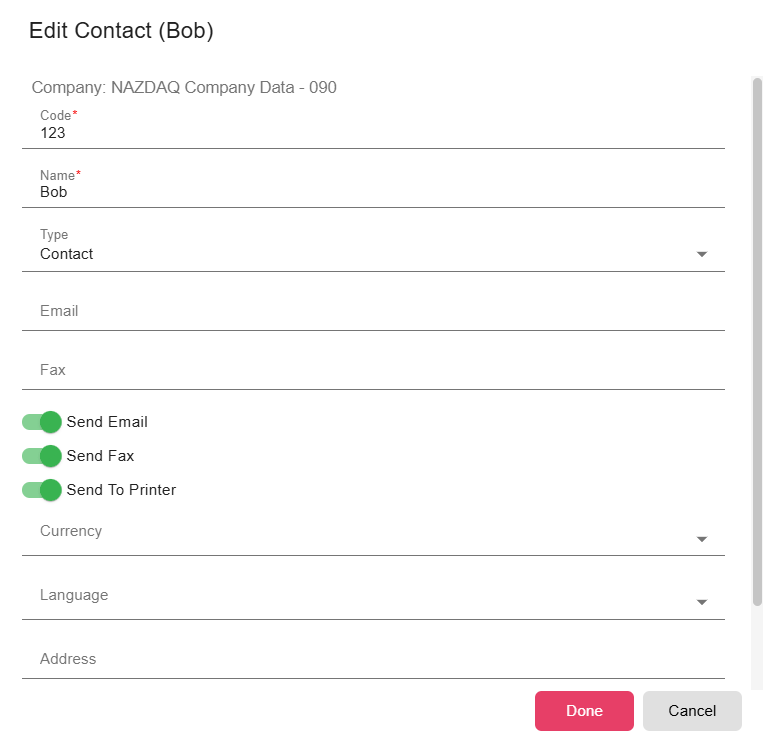
To update a contact, click the Edit button in the actions column of the list.

Notes
- When One Business Partner per Contact is enabled in Smart Engine settings, each contact can be linked to only one business partner.
- Contacts imported from an ERP system retain their ERP-level data and can be updated via special workflow or via the ERP import process rather than manually, to avoid data divergence.