Application Overview
After logging in, B2Win Suite opens to the Home Dashboard — a monitoring and analytics overview of your environment's activity, including iteration counts, success rates, data sizes, live workflows, and recent activity streams. The application is organized into several areas, each serving a distinct role.
Top Header
The top bar is visible on every page. It shows the current workspace so you can switch to a different workspace, open the full workspace list, or create a new one. Workspaces group workflows, configurations, and permissions into isolated environments. The top bar also provides access to the B2Win Suite Client download and connection options, together with the user account menu.
Workflow Manager
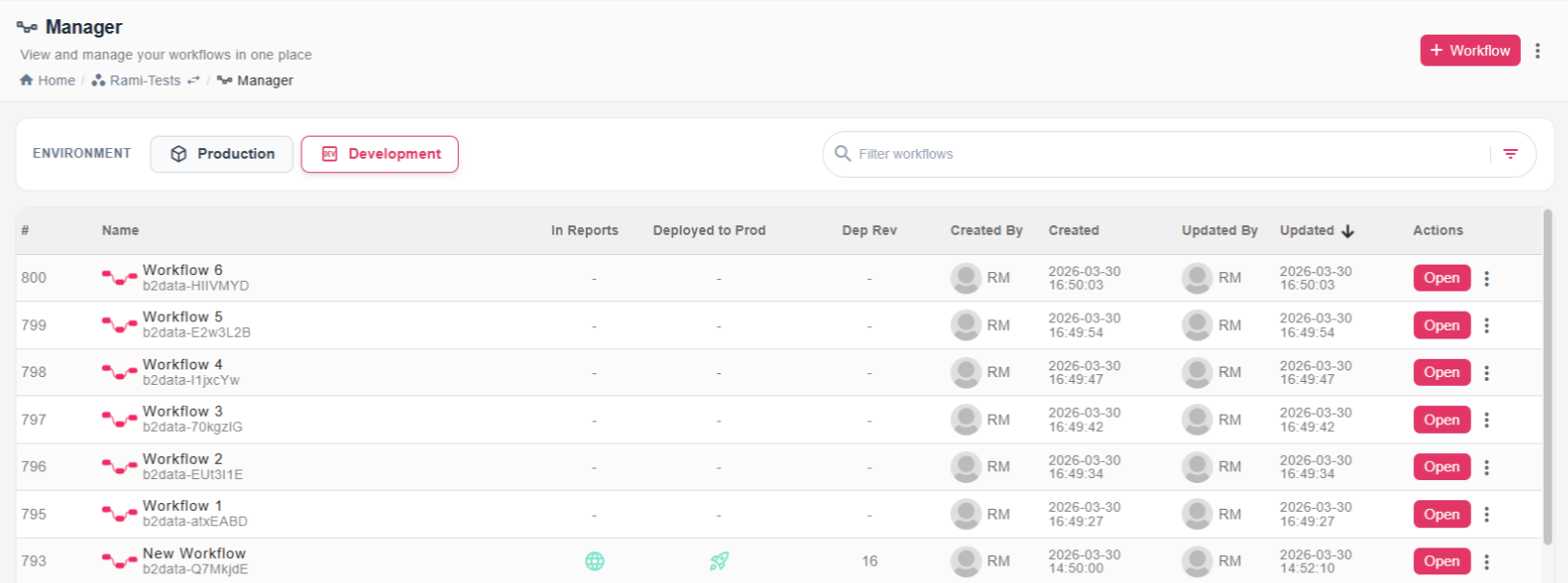
The Workflow Manager is where you create and manage workflows. It lists all workflows in the current workspace and is organized into two tabs:
- Development — Shows all workflows created across all users. Workflows can be sorted, filtered by deployment status or label, and searched by name or ID. From here you can open, export, duplicate, or delete a workflow.
- Production — Shows only workflows that have been deployed to production. Displays their live status, execution history, and run iterations. You can start, stop, run, or recover workflows from this tab.
Workflow Builder
The Workflow Builder is the visual design surface for creating workflows.
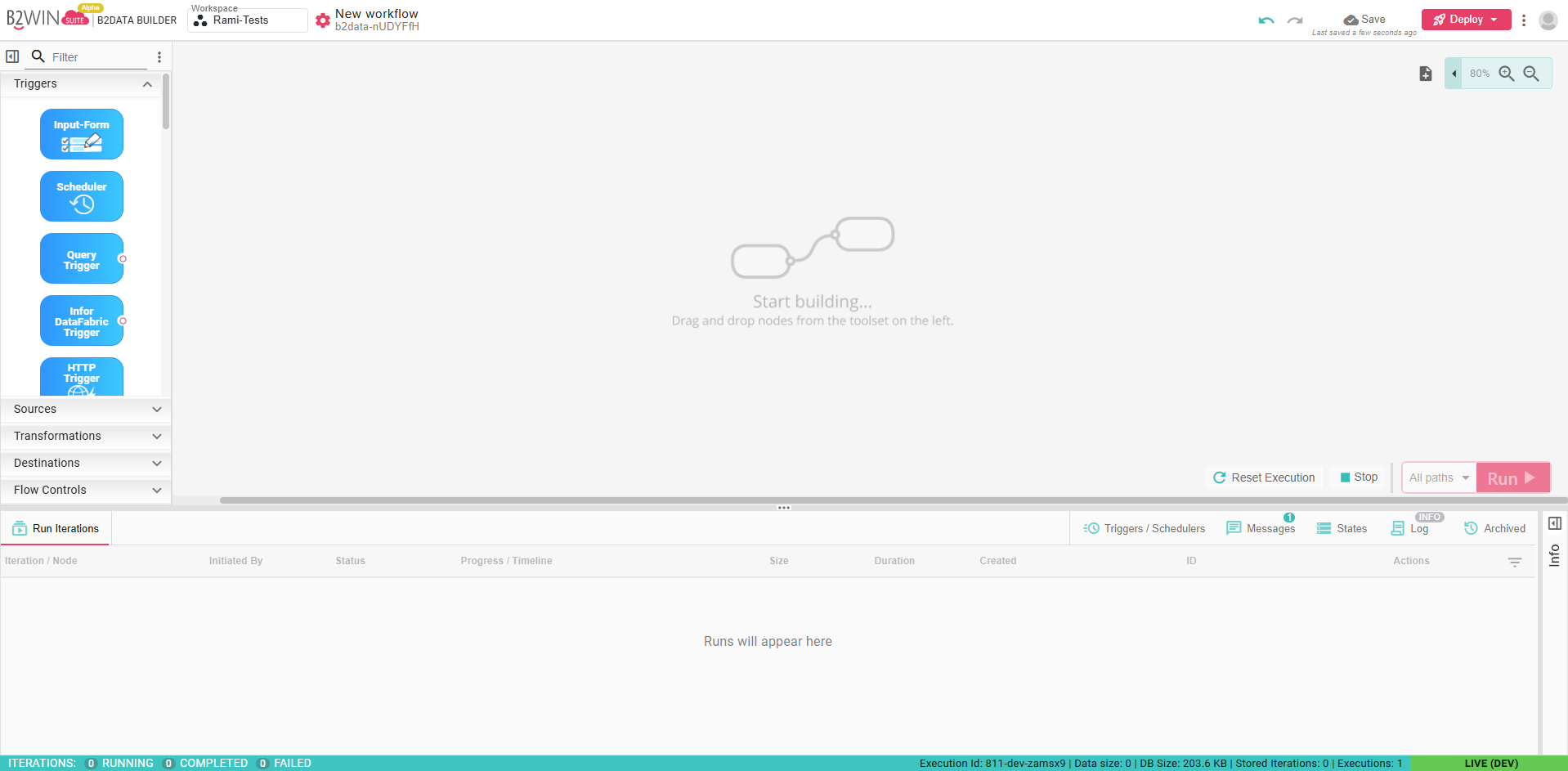
Its main areas are:
- Nodes Toolbox — The left panel lists all available nodes grouped by category: Triggers, Sources, Transformations, Destinations, and Flow Controls. Drag a node from the toolbox onto the canvas to add it to your workflow.
- Canvas — The center area where you place and connect nodes to define the workflow path.
- Run Controls — Controls at the lower right to run, stop, or reset execution.
- Iterations Panel — The bottom panel shows execution history for the current workflow, including status, duration, and individual node results. Additional tabs provide access to Triggers/Schedulers, Messages, States, Log, and Archived runs.
Running Workflows
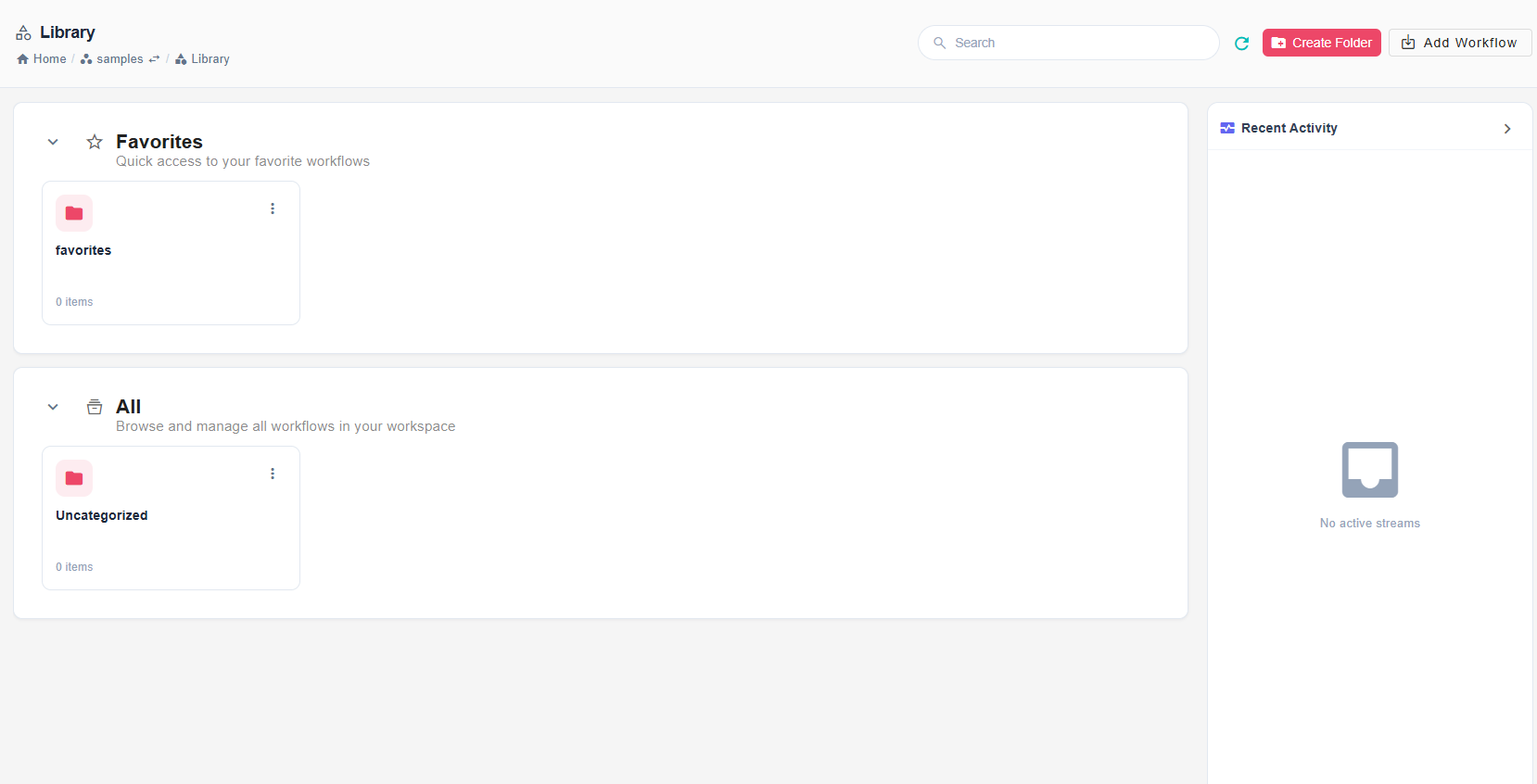
Deployed workflows are available to end users from the Library tab in the left-side panel. The Library is organized into folders and has two sections:
- All — The shared workflow library for the workspace. Everyone with access to the workspace can view the workflows in this section, while authorized users can create folders, add workflows, and arrange the shared menu.
- Favorites — Each user's personal workflow library for the workspace. Users can create their own folders, add workflows from All, and reorder items to match how they prefer to work.
For details about creating folders, adding workflows, and using recent activity, see Organizing Workflows.
Workflow Runs History
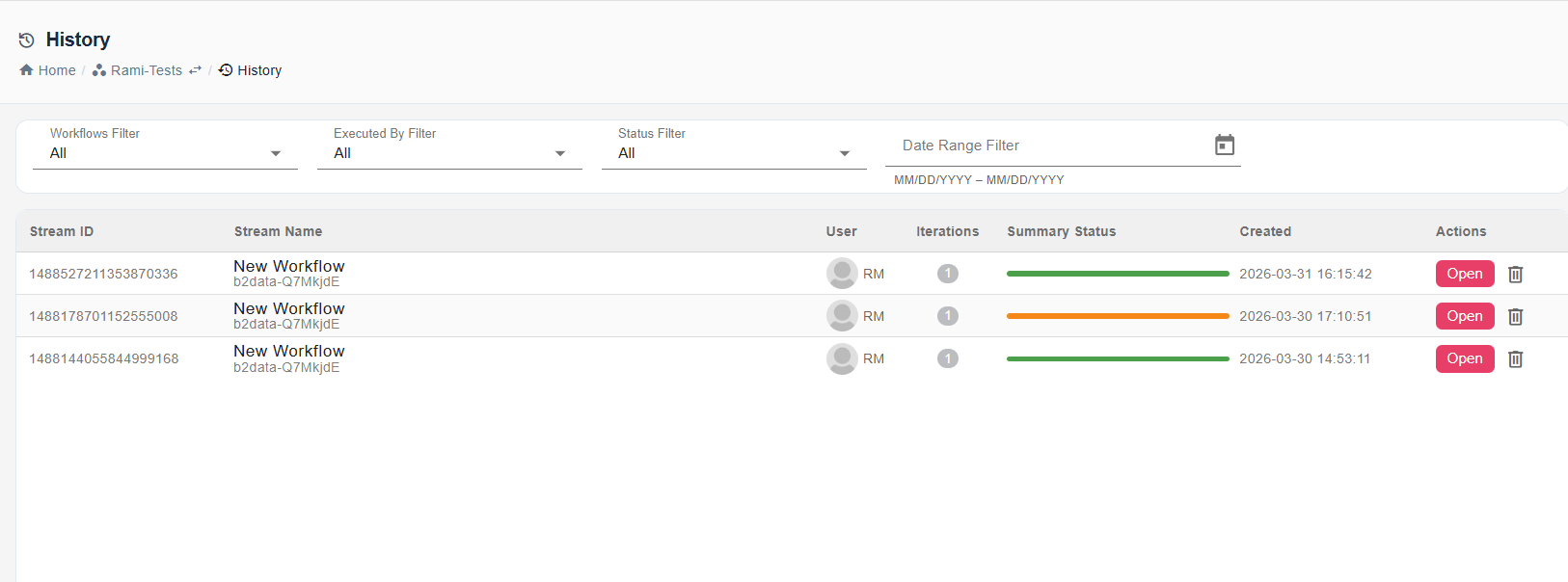
The History page provides a centralized view of all workflow executions within a workspace. Each row shows the workflow name, the user who ran it, the number of iterations, a summary status, and the creation date.
B2Output
B2Output is the document automation component of B2Win Suite. It handles the transformation, design, and distribution of output documents. It includes B2Transform, B2Design, B2Distribute, SmartEngine, Excel Designer, PDF Designer, and related configuration tools.
Configuration
The Configuration section covers platform-wide settings including workspaces, database connections, and other environment configuration.
Administration
The Administration section is for system-level management. It includes user and group management, access control, plugins, server settings, application configuration, server logs, and backup. Access to this section is typically restricted to administrators.