Alerts
Workflow alerts send automatic email notifications when production workflows encounter errors. This lets administrators and operations teams know about failures without having to check the Workflow Manager manually.
Configuration
Alerts are configured at the system level under System Settings → Workflow → Alerts.
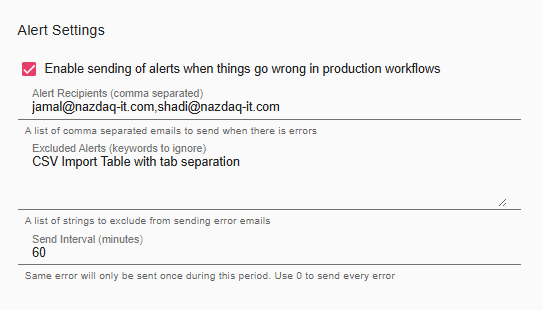
Settings
| Field | Description |
|---|---|
| Enable alerts | Master toggle. When disabled, no alert emails are sent regardless of other settings. |
| Alert Recipients | Comma-separated list of email addresses that receive alert notifications. All listed recipients receive the same email. |
| Excluded Alerts (keywords to ignore) | A list of strings (one per line or comma-separated). If an error message contains any of these strings, the alert is suppressed. Use this to silence known non-critical errors or noisy temporary failures. |
| Send Interval (minutes) | The same error will only generate one email during this interval, preventing email flooding from a repeatedly failing workflow. Set to 0 to send an alert for every individual error. |
What Triggers an Alert
An alert is sent when a production workflow iteration fails with an error. Development-mode iterations (running in the builder) do not trigger alerts.
The alert email includes:
- The workflow name and workspace
- The error message
- A timestamp of when the failure occurred
Best Practices
- Set Alert Recipients to a team inbox or distribution list rather than an individual email, so failures are visible to the whole team.
- Use Excluded Alerts to filter out well-understood errors (for example, temporary network timeouts during off-hours maintenance) to keep alerts actionable.
- A Send Interval of 15–60 minutes is a reasonable default for most deployments. Use
0only if you need to audit every individual failure.