Disk Usage
The Disk Usage view shows how much disk space a workflow's executions and iterations are consuming on the server, and lets you clean up old data to reclaim space.
Opening Disk Usage
From the Workflow Manager, click the three-dot menu on a workflow row and select Disk Usage:

The Disk Usage details panel opens:
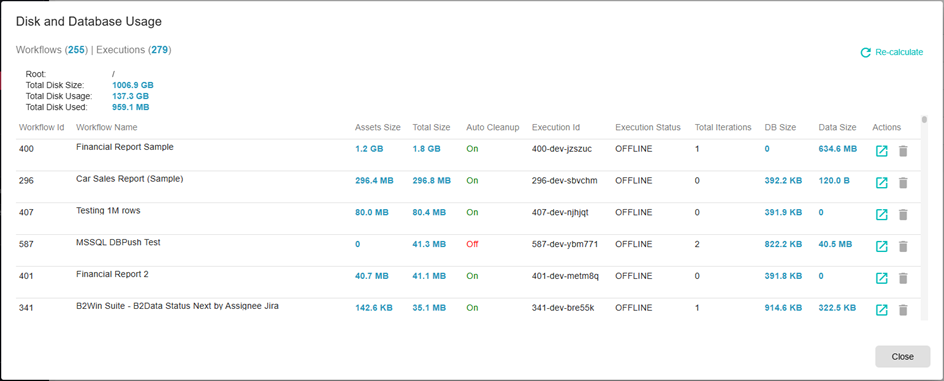
What Is Displayed
The panel shows a breakdown of storage consumed by the workflow's executions. This includes:
- The number of stored executions and their individual sizes
- Iteration data (node outputs: files, DataFrames, objects) stored in the engine's internal storage (RocksDB)
- Log data associated with each execution
Cleaning Up Old Data
To free disk space, you can delete old executions directly from this view. Deleting an execution permanently removes all its iterations, node outputs, and logs.
Deleted executions and their iteration data cannot be recovered. Only delete executions you no longer need for debugging or audit purposes.
Automatic Cleanup
In addition to manual cleanup, each workflow has configurable automatic cleanup rules in Workflow Settings → Execution Configuration → Cleanup:
| Setting | Description |
|---|---|
| Auto cleanup Iterations | Enables automatic deletion of old iterations |
| Cleanup after limit | Deletes oldest iterations once the total count exceeds this number |
| Cleanup iterations older than | Deletes iterations older than the specified duration (for example, 30d for 30 days) |
See Execution Configuration for details on configuring these rules.
System-Wide Storage Monitoring
For an overview of storage usage across all workflows in the system, administrators can check the server disk directly or review the storage settings in System Settings → Workflow → Storage.