Workflow Manager: Development Tab
The Workflow Manager allows managers to create new workflows, import an existing workflow, display disk usage, track workflow executions, control workflow triggers and edit their permissions.
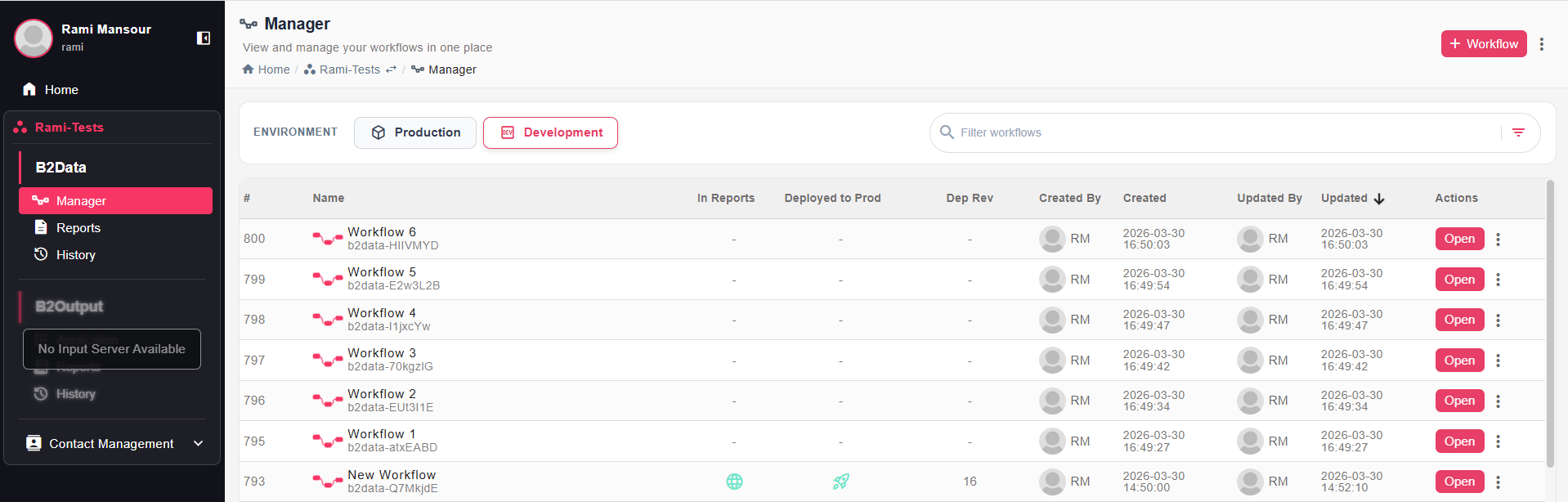
All created workflows will be listed in this tab, here you can view and keep track of all the existing workflows that were created by all the users. The workflows in the list can be sorted, filtered and searched for.
Filtering
With the option to filter workflows:
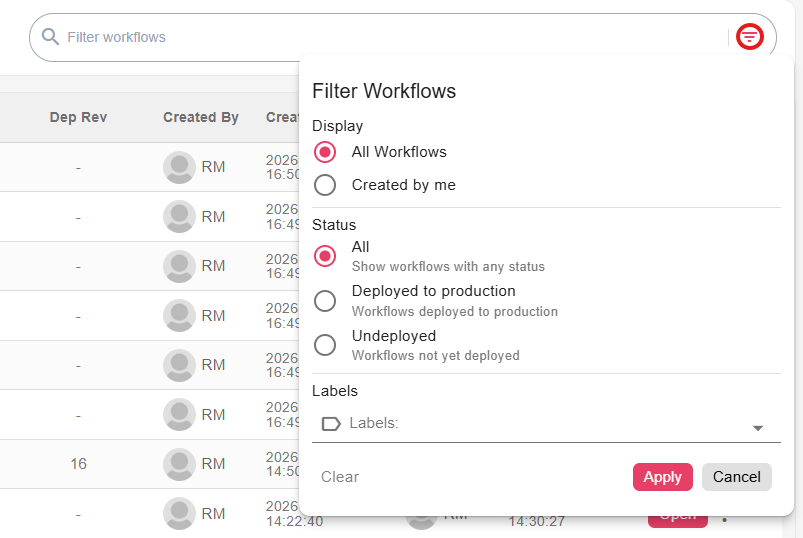
Options in detail:
- Display All Workflows created by all users, or choose to display only the workflows created by the current user
- Filter workflows by Deployed to Production, Undeployed or All
Labels
- Workflows can be labeled
- Labels menu can be used to filter workflows by a certain label
Example of filtering workflow by label "Test Label":

You can also filter workflows by id or workflow name.
Workflow Actions
Workflow actions menu can be displayed by a click on the 3 dots, or right click on the row:
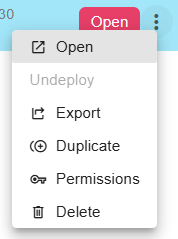
Manager menu actions:
- Open - Open the workflow in a new tab (or double click on the table row)
- Undeploy - Undeploy the workflow if it's deployed to production. It will be removed from the Deployed to Production tab list (and from Reports in case it was published)
- Export - Open "Export Workflow" dialog, that allows the user to export the workflow as a compressed file including the data from the development
- Duplicate - Create a duplicate of the workflow
- Delete - Permanently delete a workflow (also by selecting a workflow -> Delete button)