Workflow Manager: Production Tab
The purpose of this tab is to display and keep track only of the deployed workflows and to show their live data, status, executions and run iterations. The user can execute actions such as Start/Stop a workflow, run an iteration and more.
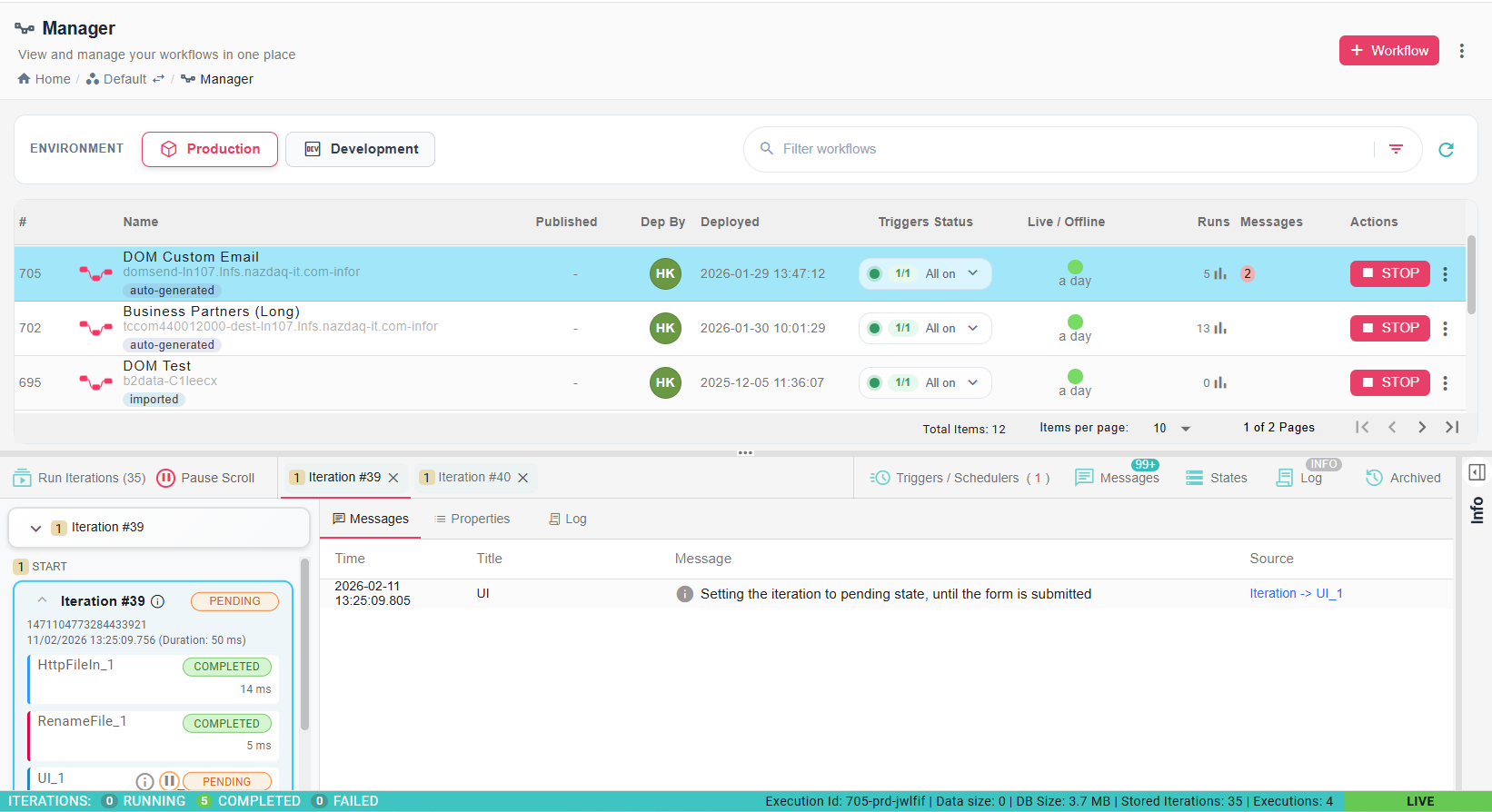
Trigger Status
In Production tab you can see and control the workflow triggers status. You can turn workflow triggers on and off by clicking the toggle switch next to the trigger's name (also for multiple triggers if exist for the same workflow).
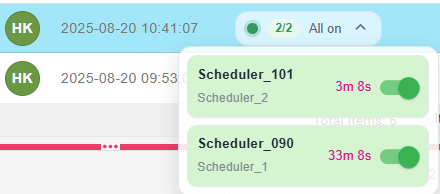
As shown in the image above, you can directly turn workflow triggers on and off by clicking the toggle switch next to the trigger's name. This allows you to pause or resume automated executions without needing to undeploy the workflow.
Published - indicates if the workflow is published. To understand the difference between deploying and publishing, see Deployment & Publishing.
Live/Offline - indicates if the workflow is live or offline.
Runs - Number of runs of the workflow
Filtering
With filter options:
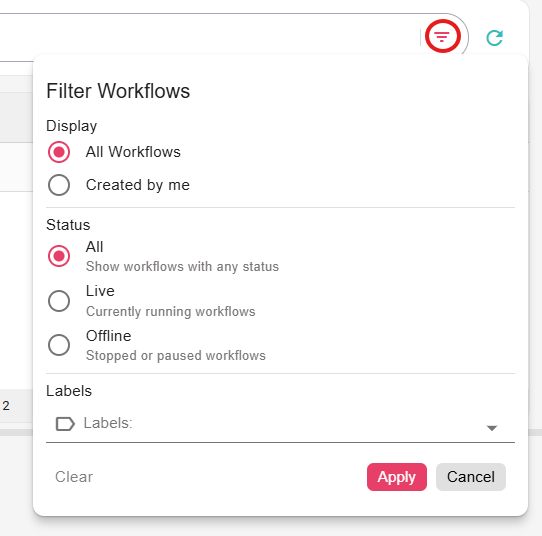
Options in detail:
- Display All deployed workflows created by all users, or choose to display only the deployed workflows created by the current user
- Filter deployed workflows by Status: Live, Offline or All
On the right side appears the Search field to filter by workflow id or name.
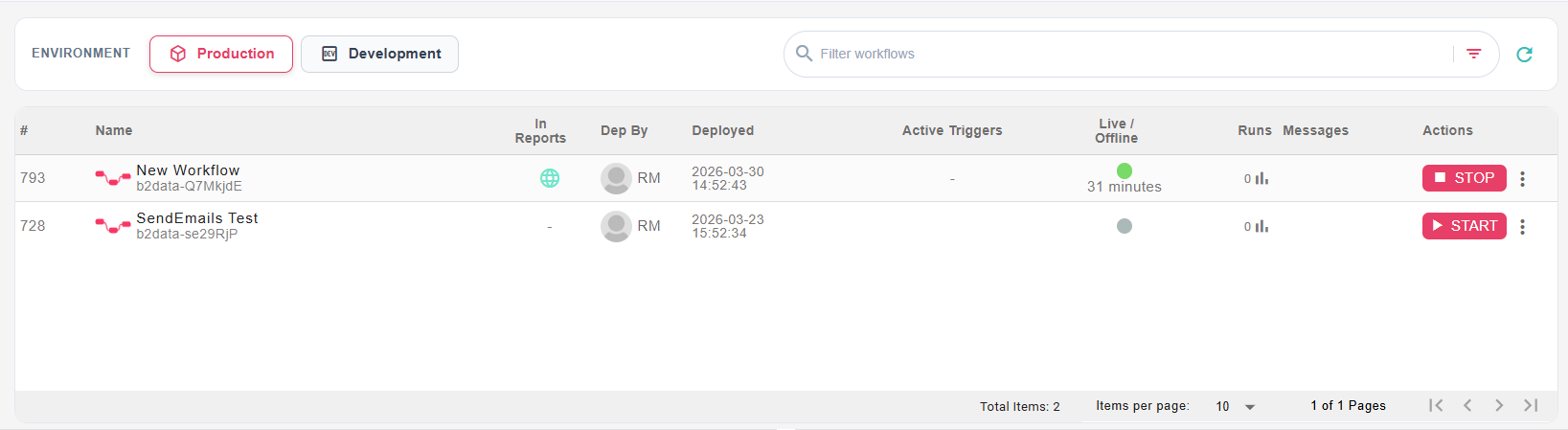
An example of deployed workflows:
Actions
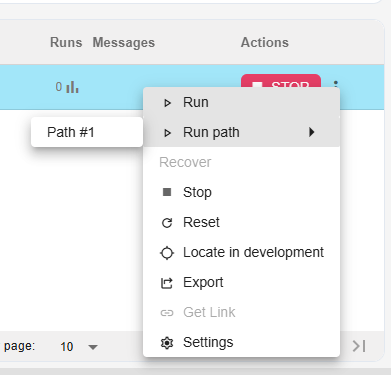
-
Start/Stop - Changes the workflow status to Live or Offline. When Live, it enables running new iterations and starting triggers (if available). When Offline, running triggers will be stopped.
-
Run - Create a new iteration of executing the workflow nodes
-
Run Path - Choose a certain path of nodes to run
-
Recover - In case the workflow execution failed for some reason, start the workflow again
-
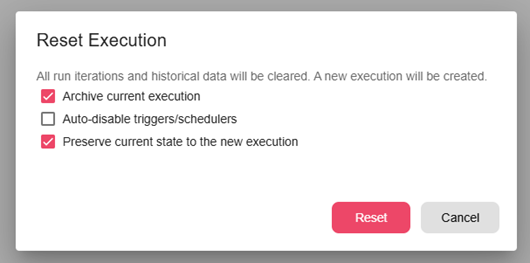
Reset - Reset the workflow execution and start a new one. A confirmation dialog is opened so the user may choose Reset Settings.
Confirmation dialog:
-
Archive current execution - Archive current execution so the user may see it again in the future with its iterations. The execution is deleted (cannot be undone) after Reset if this setting is not checked
-
Auto-disable triggers/schedulers - If the workflow contains active trigger nodes, this setting determines whether to auto-disable the triggers after the Reset is done, or not
-
Preserve current state - Keep the current state of existing triggers and use it in the new execution
-
Locate in development - Switch to the development tab and filter by the chosen workflow id
-
Export - Open "Export Workflow" dialog, that allows the user to export the workflow as a compressed file including the data from the development
-
Get Link - Create a link for the deployed workflow that it may be accessed and run by users outside of Workflow Manager and Builder.
-
Settings - Open workflow settings dialog.