Copy File (SharePoint)
The Copy File (SharePoint) node uploads an incoming file to a SharePoint document library through Microsoft Graph and returns the uploaded file URL.
Overview
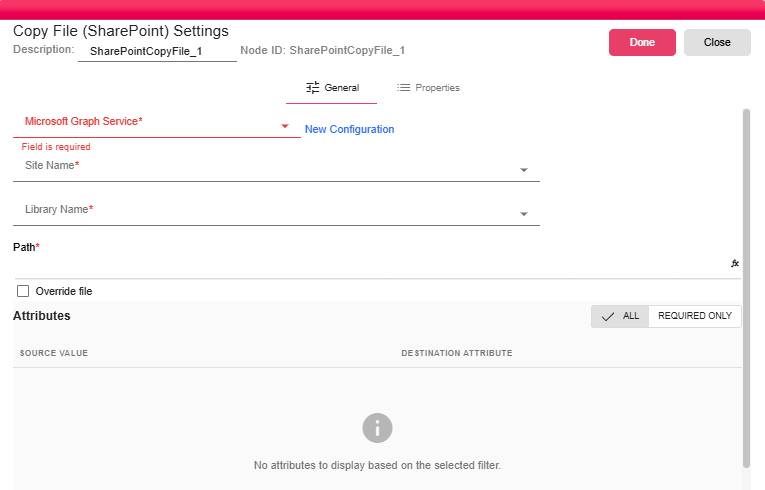
Use this node to publish generated files to a SharePoint site and document library. The node uses browser-backed selectors to choose the site and library from the selected Microsoft Graph service, then uploads the file to a configured library path.
Purpose
- Upload a
NodeFileto a SharePoint document library. - Optionally replace an existing file with the same name.
- Optionally set SharePoint list/library custom column values after upload.
- Return a launchable web URL for the uploaded file.
Configuration
| Field | Required | Description |
|---|---|---|
| Microsoft Graph Service | Yes | Authenticated Graph connection. See Microsoft Graph Service. |
| Site Name | Yes | SharePoint site selected from the service. Changing the site clears the selected library. |
| Library Name | Yes | Document library/drive selected from the chosen site. |
| Path | Yes | Folder path inside the library. The node evaluates expressions in this field at runtime. |
| Override file | No | When enabled, Graph conflict behavior is set to replace existing files. |
| Attributes Mapper | No | Optional mapping for custom SharePoint columns. Values are evaluated as expressions before being written to the uploaded item. |
Inputs
| Input | Data Type | Input Type | Description |
|---|---|---|---|
| NodeFile | NodeFile | Single | The file to upload. |
Outputs
| Output | Data Type | Collection | Description |
|---|---|---|---|
| WebUrl | WebUrl | False | A launchable URL pointing to the uploaded SharePoint file. The output title is set to the uploaded item name. |
Processing Logic
- Evaluates the configured Path.
- Opens the selected Microsoft Graph service.
- Uploads the input file to
root:/<path>/<computed file name>:in the selected document library. - If Override file is enabled, sends Graph conflict behavior
replace. - If the upload returns an item ID, evaluates and writes configured custom column values to the uploaded item's list fields.
- Emits a
WebUrloutput using the uploaded item's SharePoint web URL.
Examples
Upload a monthly report into a library folder:
/Reports/${REPORT_YEAR}/${REPORT_MONTH}
Set a custom column after upload:
- Department:
${DEPARTMENT_CODE} - ReportDate:
${REPORT_DATE}
Notes / Limitations
- The Microsoft Graph service must have permission to access the selected site, library, upload files, and update list item fields when attributes are mapped.
- The node handles one input file per execution.
- Missing intermediate folders depend on Microsoft Graph upload-session behavior for the configured path and tenant settings.
- When Override file is disabled, existing-file conflicts are handled by Graph's default conflict behavior and can fail the node.