Import Table (Excel)
Overview
The Import Table (Excel) node reads one worksheet from an Excel file and converts the selected columns into a DataFrame.
Purpose
Use this node when a workflow needs tabular data from an Excel workbook. It is useful for user-uploaded spreadsheets, server files, and Excel files retrieved from external storage.
Configuration
This node requires an upstream file before it can be configured.
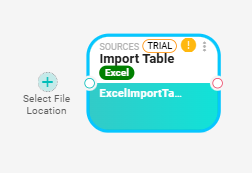
When you click on the plus sign  to select the file location, a new node is added to the workflow with a connection to the Excel node. Click Select Input and choose a source node from the list. The selected node becomes the Excel source. Configure the source node before opening the Excel node for configuration.
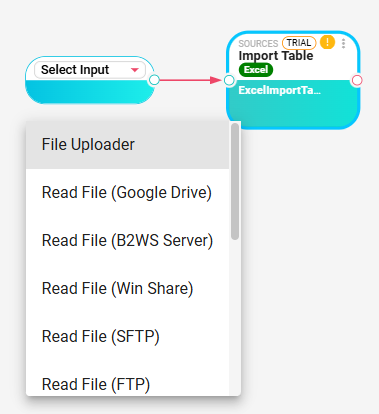
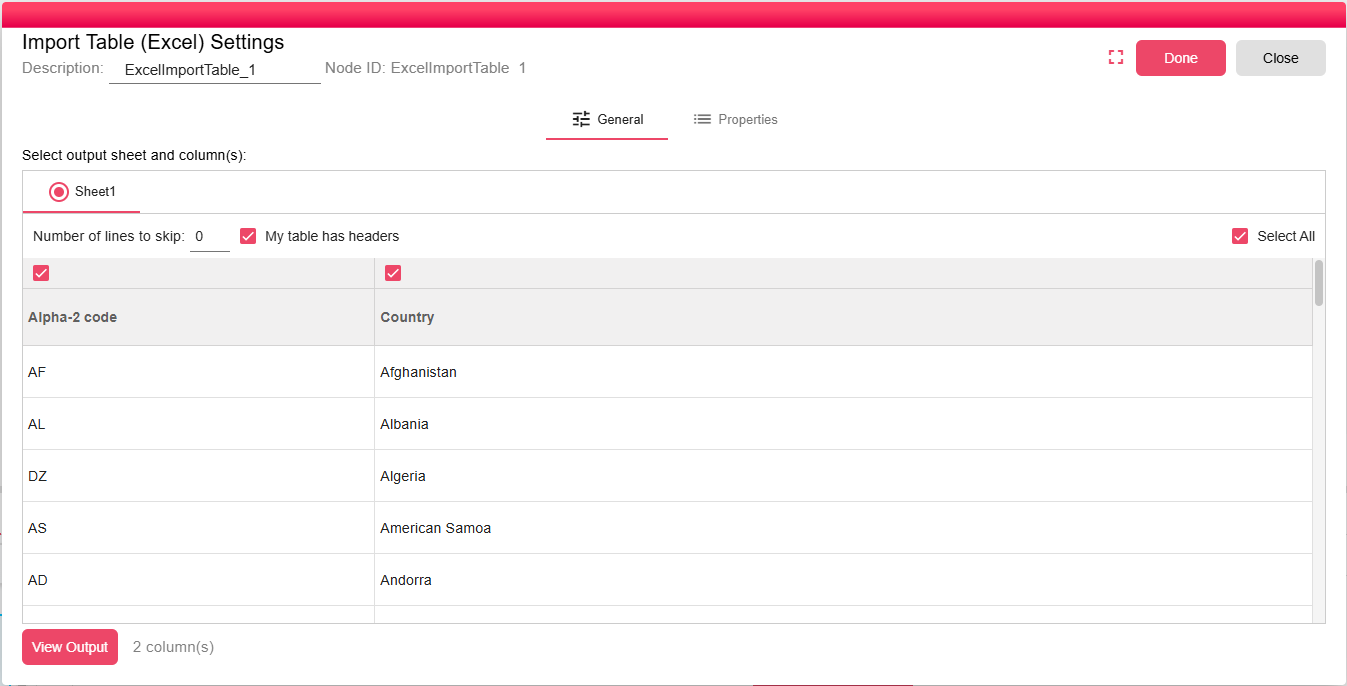
After you have selected and configured the source node, open the Excel node and configure:
| Setting | Description |
|---|---|
| Sheet | Select the worksheet to read. The dialog loads the sheets from the connected input file. |
| Number of lines to skip | Number of rows to skip before reading headers and data. The default is 0. |
| My table has headers | Treats the first available row as column headers when enabled. |
| Column Selection | Select the columns that should be included in the output DataFrame. At least one column must be selected. |
| View Output | Preview the selected worksheet and output DataFrame. |
Inputs
| Input | Data Type | Input Type | Description |
|---|---|---|---|
| InputFile | NodeFile | Single | Excel workbook to read. |
Outputs
| Output | Data Type | Collection | Description |
|---|---|---|---|
| ExcelDataSource | DataFrame | False | DataFrame containing the selected worksheet columns and rows. |
Processing Logic
The node reads the configured sheet from the upstream file, applies the line skip and header settings, validates that at least one column is selected, creates an output schema from the selected columns, and writes the worksheet rows to a DataFrame. If the input file structure no longer matches the selected columns, the node fails with a configuration mismatch error.
Examples
- Read the first sheet of a workbook uploaded by a user through File Uploader.
- Skip one introductory row, enable headers, and select only the columns needed for downstream processing.
Notes / Limitations
- Configure the file-producing input node before opening the Excel node so the sheet list and preview can load.
- At least one column must be selected.
- If the workbook changes after configuration, reopen the node and refresh the selected sheet and columns.