Fill Template (Excel)
Overview
The Fill Template (Excel) node generates a new Excel file by copying data from one Excel workbook into a sheet or table in a template workbook.
Purpose
Use this node when you have an existing Excel template with formatting, formulas, or an Excel Table layout, and you need to populate it with data from another Excel file.
Configuration
Inputs in the Dialog
The node accepts two inputs:
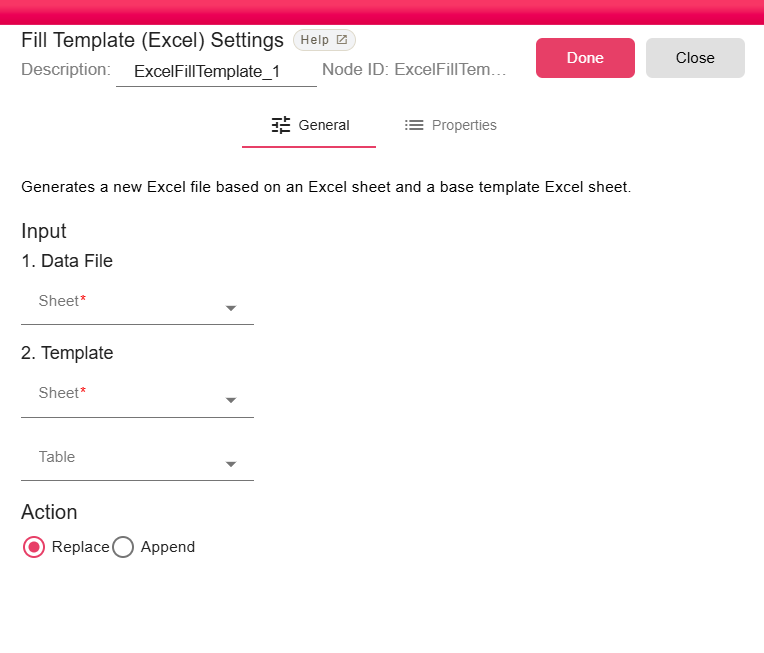
1. Data File
The Excel file containing the data to be written into the template.
- Sheet - Select the sheet within the Data File to use as the data source.
2. Template
The base Excel file that defines the structure and formatting of the output.
- Sheet - Select the sheet within the Template file to use as the target.
- Table - Optionally select a specific Excel Table within the template sheet where the data will be placed.
Action
Controls how the data is written into the template:
| Option | Description |
|---|---|
| Replace | Replaces the existing data in the template table with the new data. |
| Append | Appends the new data after the existing data in the template table. |
Inputs
| Input | Data Type | Input Type | Description |
|---|---|---|---|
| DataFile | NodeFile | Single | A NodeFile connected to the DataFile port. This file supplies the rows to write. |
| BaseFile | NodeFile | Single | Base File |
Outputs
| Output | Data Type | Collection | Description |
|---|---|---|---|
| OutputFile | NodeFile | False | A NodeFile containing the generated .xlsx workbook. |
Processing Logic
The node copies the template workbook to the working directory, reads the configured sheet from the data workbook, then writes that data into the selected template sheet or Excel Table using the selected action. The output is emitted as a new Excel file.
Examples
Use a monthly report template as the Template input and an exported worksheet as the Data File input. Select the data sheet, select the target report table, and choose Replace to regenerate the report body while keeping the template formatting.
Notes / Limitations
- Both inputs must be Excel files.
- The data sheet and template sheet selections are required.
- The template file size is checked against the workflow's maximum node file size setting.