Enhance PDF
Overview
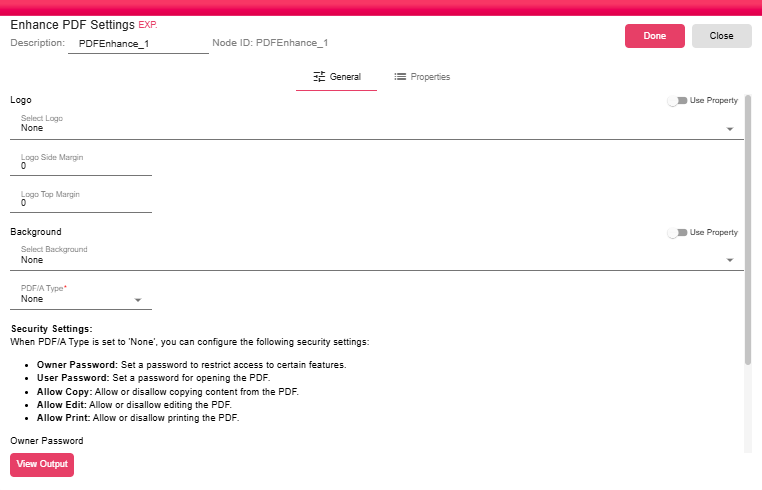
The Enhance PDF node applies additional presentation and security attributes to a PDF file produced earlier in the workflow. You can overlay a logo image, set a background, enforce PDF/A compliance, and configure access restrictions without modifying the source document.
Purpose
Use Enhance PDF when a PDF needs workflow-managed branding, backgrounds, archival PDF/A conversion, or basic permission controls before it is sent or stored.
Configuration
Logo
Optionally overlay a logo image on every page of the PDF.
- Select Logo: Choose a logo resource from the dropdown. Set to None to skip adding a logo.
- Logo Side Margin: The horizontal offset (in points) from the edge of the page where the logo is placed.
- Logo Top Margin: The vertical offset (in points) from the top of the page where the logo is placed.
- Use Property: Optionally, you can write the name of a property you want the logo to be read from.
Background
Optionally apply a background image to every page of the PDF.
- Select Background: Choose a background resource from the dropdown. Set to None to skip.
- Use Property: Optionally, you can write the name of the property you want the background to be read from.
- PDF/A Type: Select a PDF/A conformance level to produce an archival-compliant document. When set to None, PDF/A conversion is skipped and the Security Settings below become available.
Security Settings
Security settings are only available when PDF/A Type is set to None. PDF/A does not permit encryption, so these options are hidden when a conformance level is selected.
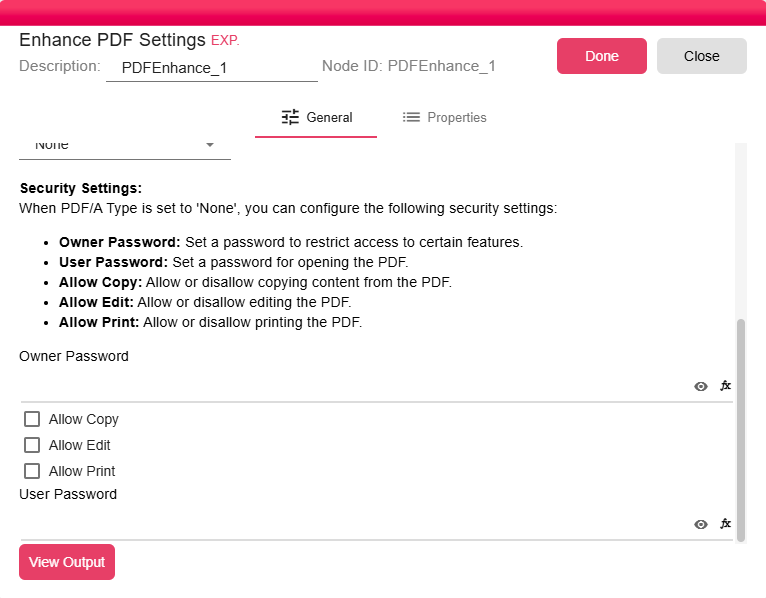
- Owner Password: Set a password to restrict access to certain features. You can also use properties to supply the value as a dynamic expression.
- User Password: Set a password for opening the PDF. You can also use properties to supply the value as a dynamic expression.
- Allow Copy: Allow or disallow copying content from the PDF.
- Allow Edit: Allow or disallow editing the PDF.
- Allow Print: Allow or disallow printing the PDF.
Inputs
| Input | Data Type | Input Type | Description |
|---|---|---|---|
| Input | NodeFile | Single | A NodeFile connected to the Input port. |
Outputs
| Output | Data Type | Collection | Description |
|---|---|---|---|
| Output | NodeFile | False | A NodeFile containing the enhanced PDF. |
Processing Logic
The node resolves the configured logo, background, PDF/A, and security settings, passes them to the PDF modification engine, and emits the modified PDF file as a new NodeFile output.
Examples
- Add a company logo and background to every generated invoice PDF.
- Convert a generated PDF to
PDF/A-3Bbefore archiving it. - Set an owner password and disable copy/edit/print when PDF/A conversion is not selected.
Notes / Limitations
- Security settings are available only when PDF/A Type is None.
- PDF/A output cannot be encrypted.
- Logo and background resources are selected from configured system resources or supplied through properties when supported by the configuration.
View Output
Click View Output at the bottom of the settings panel to preview the enhanced PDF output before saving.