Sign PDF
Overview
The Sign PDF node is used to apply a digital signature to a PDF document.
Purpose
Use Sign PDF when a workflow needs to stamp or digitally sign a PDF before sending, archiving, or publishing it.
Configuration
Signature assets and signing mode are configured in Me > Profile > Signature.
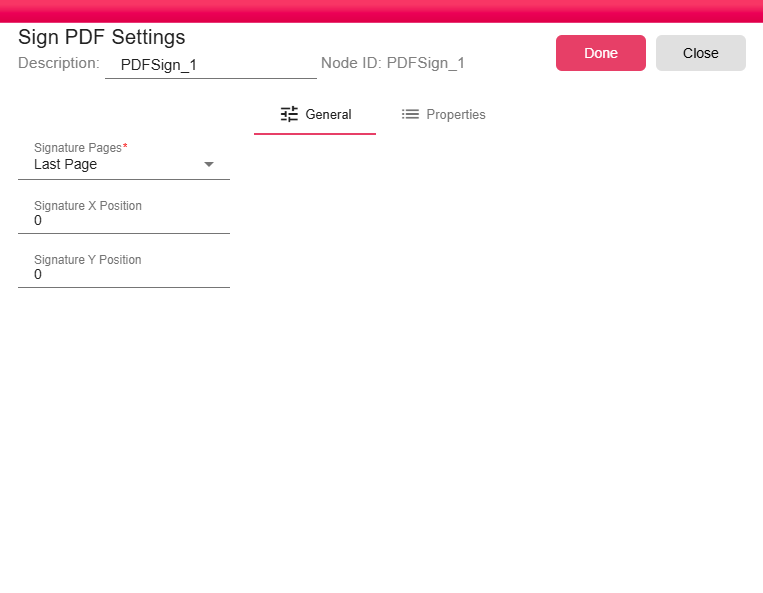
The node configuration controls where the signature is applied:
- Signature Pages: This required field determines on which page(s) of the PDF the signature will be placed. The options are:
- None (skip signing): No signature will be applied and the PDF is passed through unchanged.
- First Page: The signature will be added to the first page of the document.
- Last Page: The signature will be added to the last page of the document.
- All Pages: The signature will be applied to every page of the document.

- Signature X Position: Sets the horizontal (X-axis) coordinate for the signature's position on the page.
- Signature Y Position: Sets the vertical (Y-axis) coordinate for the signature's position on the page.
Inputs
| Input | Data Type | Input Type | Description |
|---|---|---|---|
| Input | NodeFile | Single | A NodeFile connected to the Input port. |
Outputs
| Output | Data Type | Collection | Description |
|---|---|---|---|
| Output | NodeFile | False | A NodeFile containing the signed or pass-through PDF. |
Processing Logic
The node reads the current user's signature settings and applies the configured behavior:
- Regular signature: stamps the configured signature image on the selected page or pages.
- Digital signature: applies the configured certificate signature without a visible image.
- Digital and image signature: stamps the image and then applies the certificate signature.
- None: copies the input PDF unchanged.
Examples
Choose Last Page with X/Y coordinates matching the signature area in a contract template, then configure the user's signature image or certificate under the profile signature settings.
Notes / Limitations
- Signature image or certificate files must exist in the executing user's profile when the selected signature type requires them.
- If the user profile signature type is None, the PDF is passed through unchanged.
- The output filename is generated by the node.