Organizing Workflows
There are two sections for workflows in the Library: All and Favorites. Workflows are organized in folders in each section. To view, click on the Library tab on the left-side panel.
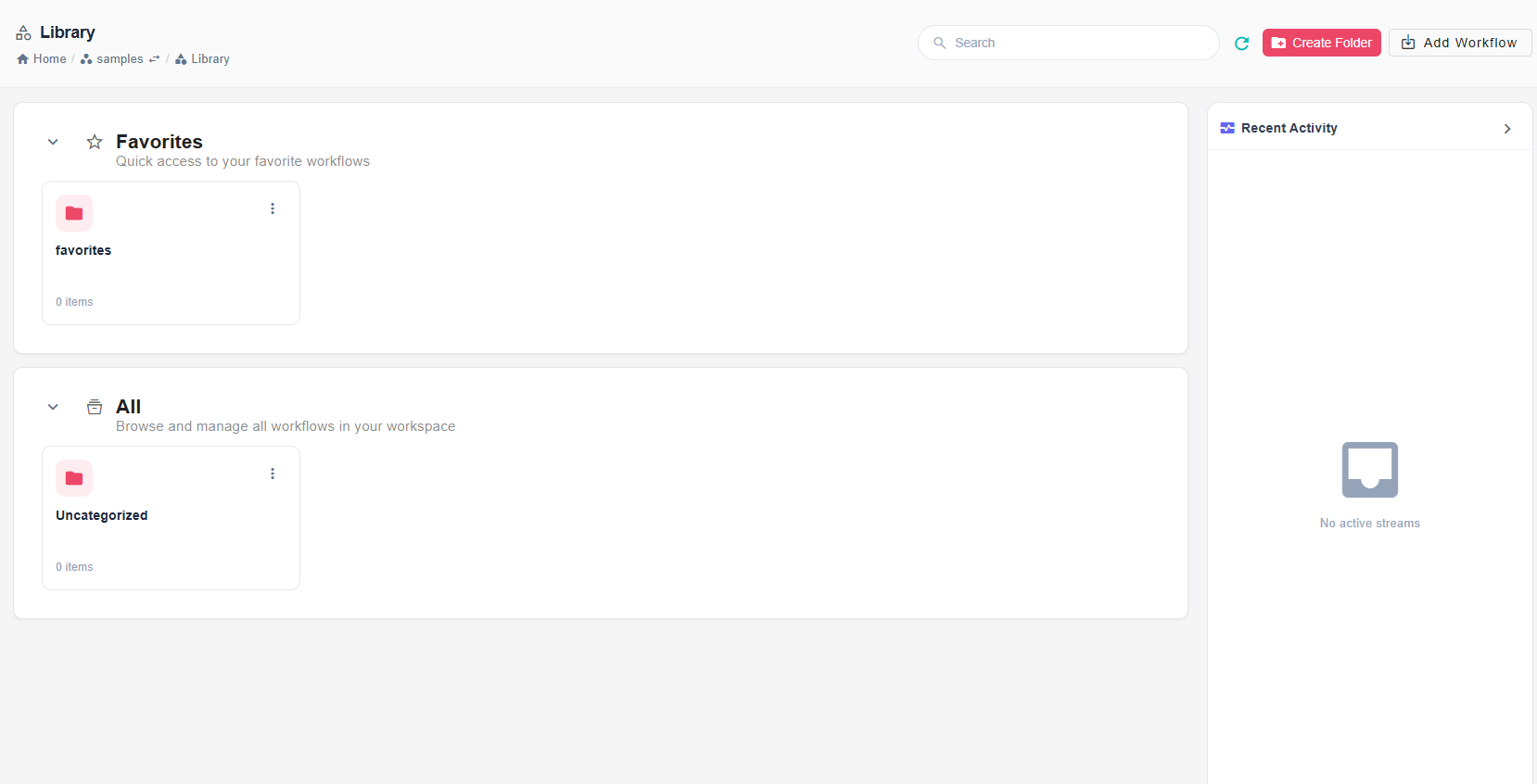
All
This is the universal section for all workflows. Everyone who has access to the workspace can see the workflows in the All section. Authorized users can edit this section, create folders, and move workflows from folder to folder. End-users can simply view and run the workflows the way the administrators have arranged them.
Favorites
Each user has a personal Favorites section per-workspace where they can organize workflows into folders according to their own needs. The first time you open the Favorites section, it will be empty. Users can also arrange the workflows in the order they wish inside Favorites. The workflows will appear in the left-side menu under Library in the way the user has ordered them in Favorites. To do so, hover over a workflow or folder and drag and drop it to the desired position.
Creating Folders and Adding Workflows
You can add folders and workflows to either the All section (For users with "Modify Menu" permission under MENU_MOD) or your personal Favorites section. There are two ways to do this:
- Using the top menu: Click Create Folder or Add Workflow in the top right corner.
- Using the context menu: Right-click on the desired section or folder and choose Create Folder or Add Workflow.
Alternatively, you can easily add an existing workflow from the All section to your Favorites by right-clicking the workflow and selecting Add to Favorites.
When creating or adding items:
- Create Folder – Prompts you to enter a name and description for the new folder. This creates an empty folder in your selected section.
- Add Workflow – Opens a dialog allowing you to select an existing workflow to add to the section. You can also specify notes for workflows in Favorite section.

Recent Activity
The Recent Activity section shows a list of recently run workflows, providing quick access to workflows that were run recently by the user or by other users in the workspace. The workflows are displayed in descending order of execution time, with the most recently run workflow appearing at the top. If you are inside a specific folder, the Recent Activity section will display the recently run workflows in that folder and from all users. Otherwise, it will display all workflows that were recently run by any user in the workspace.
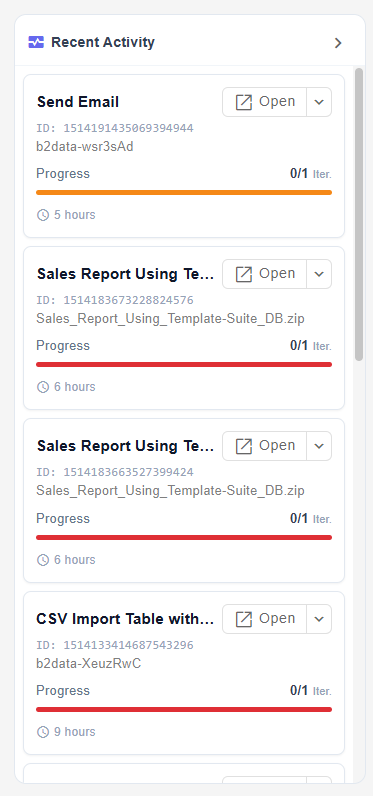
You can hide this section by clicking the small arrow at the right of the "Recent Activity" heading.