Workflow Runs History
The Workflow Runs History page provides a centralized view of all workflow executions within a workspace. To access it, click on the History tab on the left-side panel.
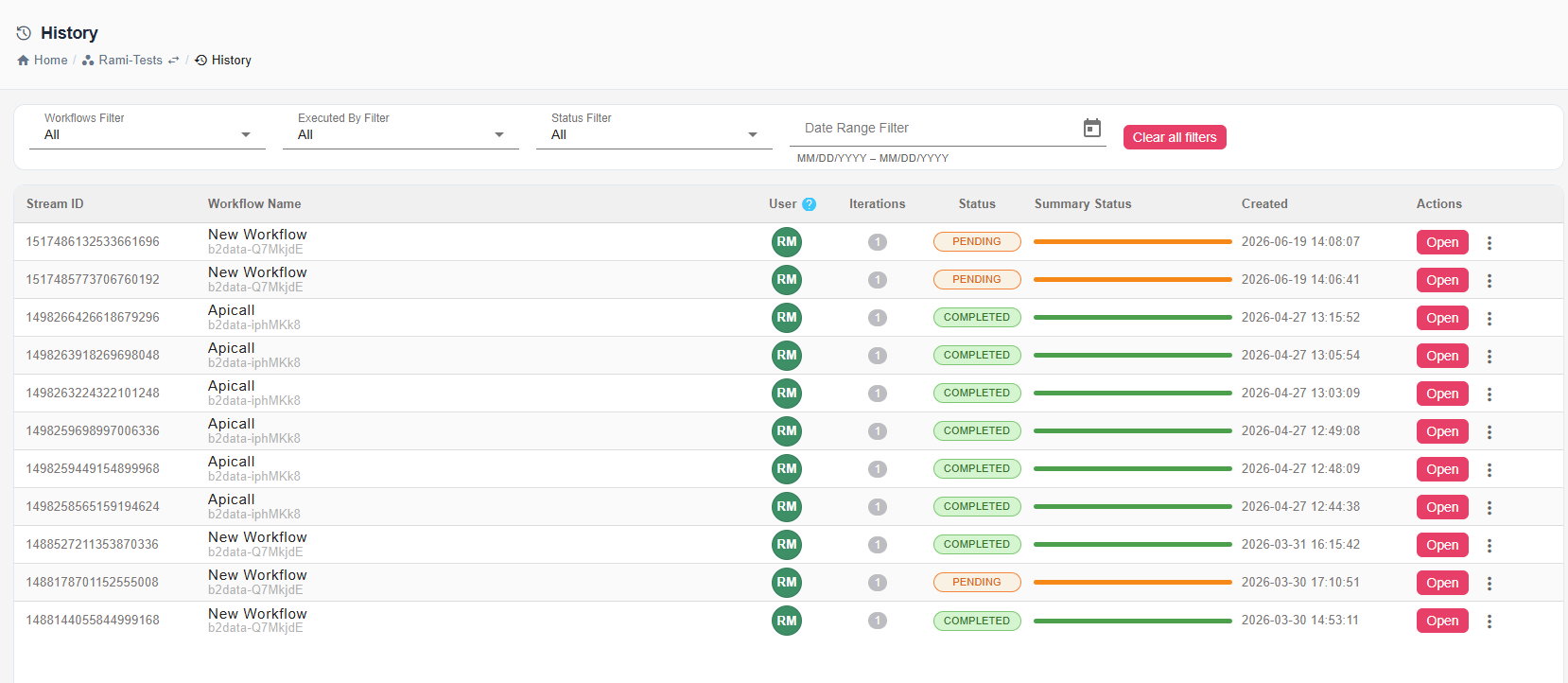
Filters
Use the filter bar at the top of the page to narrow down the list of workflow runs:
- Workflows Filter — Select a specific workflow or leave as All to show runs from every workflow.
- Executed By Filter — Filter by the user who executed the workflow, or leave as All.
- Status Filter — Filter by execution status (Aborted, Completed, Failed, ...), or leave as All.
- Date Range Filter — Specify a date range (MM/DD/YYYY – MM/DD/YYYY) to show only runs within that period. Click the calendar icon to open the date picker.
Runs Table
Each row in the table represents a single workflow run with the following columns:
- Stream ID — A unique numeric identifier for the run.
- Stream Name — The name of the workflow that was executed, with the workspace name shown below it.
- User — The user who triggered the run.
- Iterations — The number of iterations in the run, shown as a badge.
- Status - Status of the stream.
- Summary Status — A colored progress bar summarizing the outcome of all iterations. A green bar indicates success, while an orange bar indicates it is pending. A red bar indicates failure.
- Created — The date and time the run was created.
- Actions — Available actions for the run:
- Open — Opens the detailed view of the run, where you can inspect individual iterations and their results.
- Delete (trash icon) — Deletes the run from the history.
Pagination
At the bottom of the page, you can control how many rows are displayed per page using the Rows per page dropdown, and navigate between pages using the page controls.