Get Link
In case you want to have access to run your workflow directly from another application, B2Win Suite gives you the option to create a link easily for your workflow. It works for workflows that include a UI node, an Input Form, or both.
The link will run the workflow when it's copied to your browser and activated manually or by any other application. When the link is activated, the workflow will run in B2Win Suite according to your configuration when you generated the link.
You can get the link in two ways:
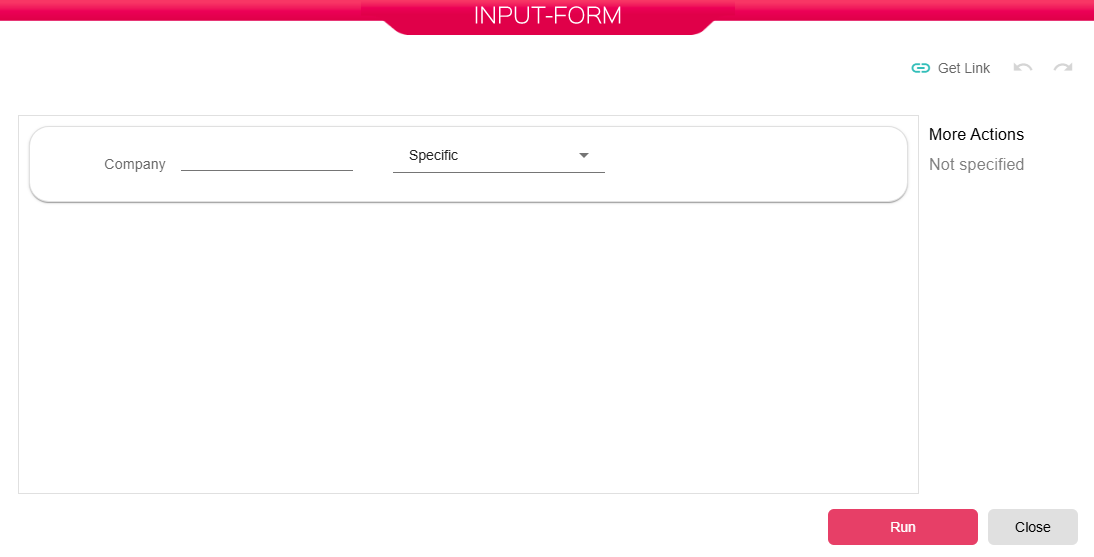
- Click Get Link from inside your workflow Input Form.
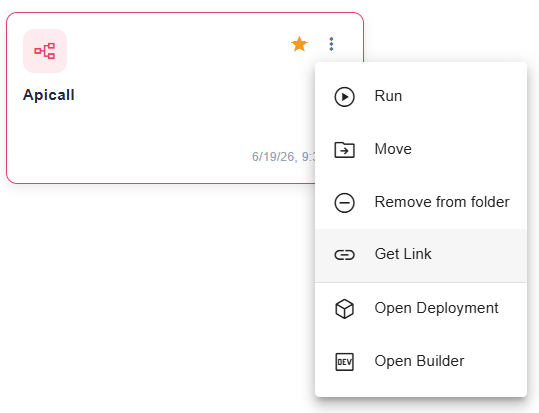
- Choose Get link from the right/click menu or the three dots menu next to the workflow in the Library section.
Auto-Run - When checked, the Input Form will be hidden when the link is run.
Parameters - Contains all Input Form fields, allowing the user to choose which fields to include in the link.
Input-Form Layout – Lightbox\Embedded
Test Link - Will run the link in a new tab.
Copy Link - Copy the link to be used in another application.