Overview
In B2Win Suite, workflows are built by developers in the Workflow Builder and then deployed to production for regular execution. The developer can also publish the workflow to make it available to end users in the Library. Once deployed, a workflow is available in the Production section inside Manager. Once published, the workflow becomes visible in the Library for end users to run directly.
Workflows in the Library are the primary way end users interact with B2Win Suite. They appear in organized menus, can accept user input through input forms or UI nodes, and produce output based on the data they process.
See: Deployment and Publishing
What Is a Published Workflow?
A published workflow is exposed to end users in the Library. When a user runs a workflow, they trigger a workflow execution — the workflow processes data (reads from sources, applies transformations, writes to destinations) and may generate output such as documents, exports, or data updates.
All workflows must have an Input Form or a UI Node in order to be published. Because of this, all workflows visible in the Library are runnable by design.
Published workflows can be executed directly from the Library by right-clicking on the workflow and selecting Run. Note that workflows that are temporarily marked as Offline will be unavailable for execution.
Where to find Published Workflows
Published workflows are accessed through the Library tab on the left side panel. In the Library, you can create folders and add workflows to folders if you have the appropriate permissions. End users only have access to workflows assigned to them by their supervisor. Workflows are organized into two sections:
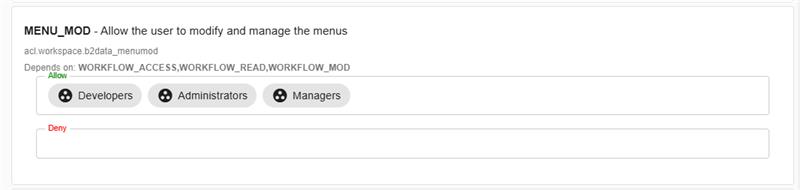
- All — The universal section, visible to everyone who has access to the workspace. Workflows here are displayed in the order configured by administrators. It is maintained by authorized users who control its folder structure. Authorization can be configured inside Permissions under MENU_MOD (go to Configurations->Workspaces then click on Permissions for appropriate workspace, then look for MENU_MOD in the permissions list)
- Favorites — Each user's personal section within the workspace. Users can place workflows in favorites if they run them frequently, create their own folders, and organize their view independently.
What's in This Section
This section covers everything related to running workflows as an end user:
- Library — The interface where workflows are organized.
- Workflow Runs History — A centralized view of all past workflow executions, with filtering and inspection tools.
- Interactive Forms — The forms and viewers (Input Form and UI Node Viewer) used to provide input to a workflow.