Deployment & Publishing
Deployment vs Publishing
Although both options appear in the same dialog, they serve different purposes:
- Deploy: Used when the workflow should run as a production job in the background. After deployment, it appears under Production in the Manager tab and runs independently of the builder.
- Publish: Used when the workflow should be available to an end user in Library. Publishing is for workflows that the user can run and interact with directly.
Deployment
Once the workflow development process is complete and has been tested successfully, it needs to be deployed to production. In development mode, the workflow execution is active only when the builder is open. To ensure the workflow runs continuously in the background as a production job, it must be deployed.
Steps to Deploy a Workflow
-
Access Deployment:
- Click on the Deploy button located at the top-right corner of the builder.

- Click on the Deploy button located at the top-right corner of the builder.
-
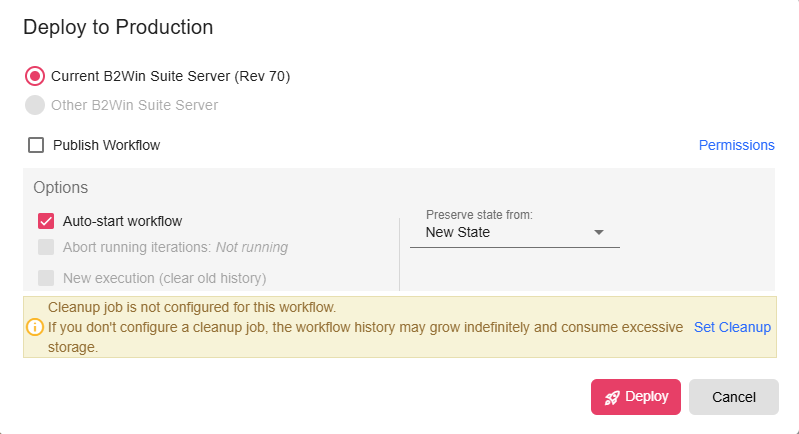
Deployment Dialog: When you click on Deploy, a dialog appears allowing you to configure the deployment settings:
- Preserve Current State:
- If there is an already deployed version of the workflow, you can choose to preserve its current state. This ensures that the existing workflow’s state (e.g., scheduler timings, query values) is maintained.
- If it is a new deployment (no prior version exists), no state will be set by default.
- Optionally, you can choose to use the development state as the starting state for the production deployment.
- Select Triggers to Start:
- You can specify which triggers (e.g., Scheduler, File Listener, HTTP Trigger) should be activated immediately upon deployment.
- Triggers that are not selected will remain inactive until manually enabled later.
- Preserve Current State:
-
Confirm Deployment:
- Once the options are configured, confirm the deployment by clicking Deploy.
What Deployment Does
- Deploying makes the workflow a running production workflow.
- The workflow is added to the Production tab in the Manager.
- Triggers that you enabled during deployment will start running there.
- The workflow no longer depends on the builder being open.
Publishing Workflow
In the same Deploy to Production dialog, you can also publish the workflow to a folder so that end users can access it from Library.
When to Use Publishing
Use publishing when the workflow should be available for an end user to open from Library and interact with.
Publishing is intended for workflows that include user interaction, such as:
- UI nodes
- Input Form nodes
If the workflow does not contain a UI node or an Input Form node, publishing is not needed. In that case, running it from Library would not provide any user interaction, so the workflow cannot be published.
How to Publish During Deployment
-
Enable Publish Workflow
- In the deployment dialog, check Publish Workflow.
- Once enabled, a Select folder button appears.

-
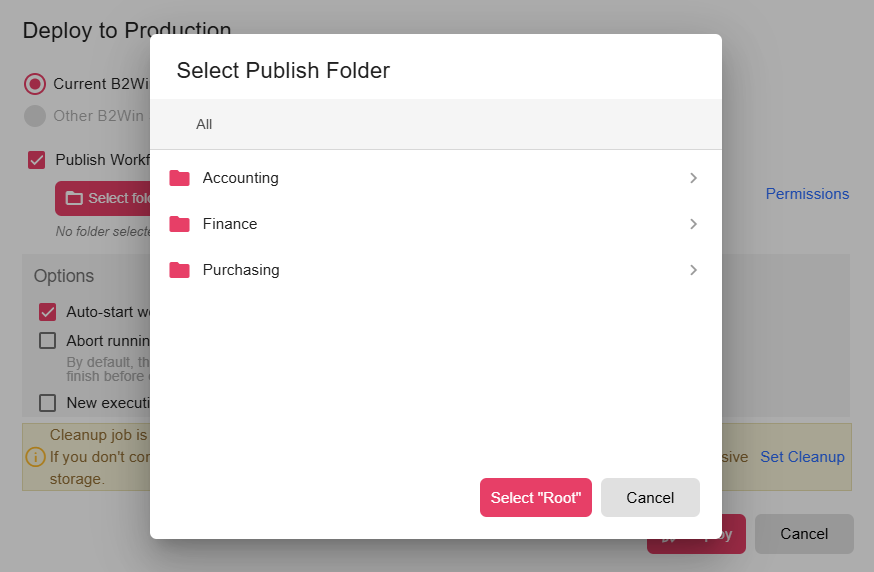
Choose the Publish Folder
- Click Select folder to open the Select Publish Folder dialog.
- Browse the available folder tree (for example, Accounting or other folders in your structure).
- Select the target folder and confirm.
-
Use Root if Needed
- If you want to publish at the top level, use Select "Root".
-
Deploy
- Click Deploy to deploy and publish in one action.
- Once published, the workflow can be accessed by the end user from the selected folder in Library.
Default Behavior
- If Publish Workflow is enabled but no folder is selected, the workflow is published to the Root folder.
Permissions Note
-
Use the Permissions link in the deployment dialog if you need to review or adjust access before publishing.
-
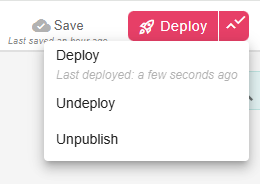
Use the deploy menu actions to Deploy, Undeploy, or Unpublish when needed.
Key Features of Deployment
- State Management:
- Preserve State: Retains the state from the previously deployed workflow, ensuring smooth transitions without data loss.
- Development State: Optionally deploy workflows using the current development state.
- Trigger Control:
- Activate only the required triggers during deployment.
- Inactive triggers can be enabled later as needed.
- Always Running:
- Deployed workflows remain alive and ready to execute their triggers at any time.
Managing Deployed Workflows
Once deployed, workflows can be monitored and managed through the Manager:
- View workflow execution history.
- Manage active triggers.
- Restart or update workflows as needed.
Best Practices
- Preserve State: Use this option to ensure continuity when updating workflows.
- Selective Triggers: Activate only the necessary triggers during deployment to avoid unexpected executions.
- Publish Only Interactive Workflows: Publish workflows only when end users need to interact with them through Library.
- Publish to Proper Folders: Assign published workflows to meaningful folders so teams can find them faster.
- Testing: Always test workflows thoroughly in development mode before deploying to production.
By deploying workflows, B2Win Suite ensures that business processes and tasks run reliably, efficiently, and independently of the development environment.