Terminology
Manager — Where you see the list of workflows in development and in deployment, from there you can open for each workflow their builder to continue developing them, more on this in the Manager section.
Builder — The builder where you develop your workflow.
Builder Canvas — The region where you drag the nodes and connect them together, and have an overview of the workflow DAG (Directed Acyclic Graph).
Nodes Toolbox — The list of nodes that is available in the system, you can choose from, and they are categorized by categories.
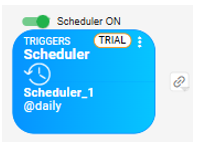
Trigger Node — A trigger node is a node that can start a new Iteration by itself. It can be a Scheduler, File Listener, or HTTP Service. When it fires, it creates a new iteration in the running workflow. A trigger has an On/Off button to activate it or turn it off.
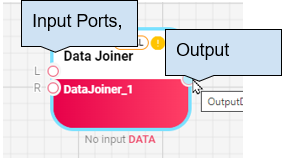
Node — The node is the building block of a workflow. A workflow can contain one or hundreds of nodes connected together. Each node can have one/multiple inputs using multiple ports or one port, and can also have an output.
Node Input/Output — A node can have input, output, or both. The Input/Output can be:
- DataFrame — Tabular data that can come from a database, Excel file, or CSV file.
- NodeFile — A file that can be read from a file system, SharePoint, or any other system, depending on the source node used to fetch it.
- URL — A node can take a URL or output a URL to be opened.
- Object — A JSON representation of an object, for example from a web service that returns JSON or XML.
Input Form Node — A node that gives the user the ability to pass inputs to the workflow using a displayed form. For more: Input Form Node
Execution — Each workflow when created has an execution that is the running process in the system. The Execution is always alive and waiting for events from triggers, or manually from the user using the Input Form or manual Run button to create an iteration.
Iteration — Whenever a workflow runs through a trigger or manually from Run/Input Form, it will create an iteration. The iteration takes an ID incrementally starting from 1, and from that iteration you can view input/output/properties and logs per each node in the workflow. For more: Iterations
Deployment — To be able to have the workflow running in production and always available, you need to deploy it. In development, the workflow is alive as long as you are in the builder. For more: Deployment
Properties — Properties can be extra values that are passed between node executions. They can be static values or scripting. For example, an Input Form can set values for properties and they can be read from anywhere in the workflow when executed. For more: Properties